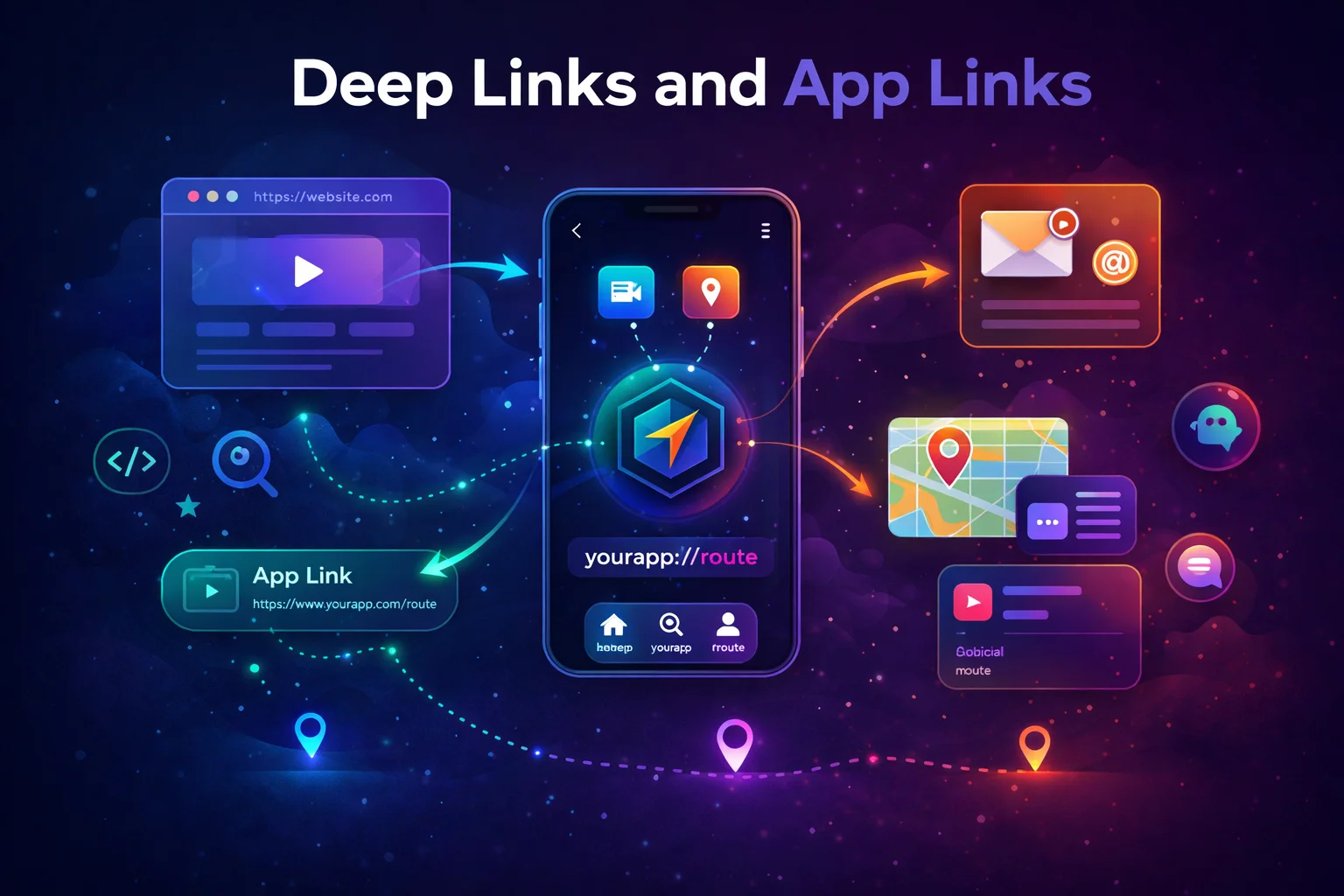
Imagine you’re browsing the web, you tap a link to an article, and instead of opening in the browser — it opens directly in the app, on the exact article screen, with the article already loaded. That’s a deep link. Now imagine it happens without the “Open with…” dialog — the system knows your app owns that URL. That’s an App Link. Deep links and App Links make your app feel like a native part of the web. This guide covers both from scratch — what they are, how they work, how to set them up, and how to test them.
The Mental Model — What Are Deep Links?
// Think of your app as a BUILDING with many ROOMS (screens):
//
//  🏢 Your App
//  ├── Room 1: Home Screen
//  ├── Room 2: Article List
//  ├── Room 3: Article Detail (article #123)
//  ├── Room 4: User Profile (user #456)
//  └── Room 5: Settings
//
// Normally, users enter through the FRONT DOOR (Home Screen)
// and walk through rooms one by one: Home → Articles → Detail
//
// A DEEP LINK is a DIRECT DOOR to a specific room:
//  🔗 https://example.com/articles/123 → opens Room 3 directly
//  🔗 myapp://profile/456 → opens Room 4 directly
//
// The user skips the lobby — they land exactly where the link points
//
// THREE types of deep links in Android:
//
// 1. URI DEEP LINK — custom scheme
//    myapp://articles/123
//    Only YOUR app can handle this (no browser will)
//
// 2. WEB DEEP LINK — regular HTTPS URL
//    https://www.example.com/articles/123
//    Browser OR your app can handle it → user sees "Open with..." dialog
//
// 3. APP LINK — verified HTTPS URL (Android 6+)
//    https://www.example.com/articles/123 (with verification)
//    System KNOWS your app owns this domain → opens directly, no dialog
//
// App Links = Web Deep Links + Domain Verification
// App Links are the BEST user experience — seamless, no prompts
How Deep Links Work Under the Hood
// When a user taps a link, the Android system:
//
// 1. Creates an INTENT with action=VIEW and data=the URL
//    Intent { action=ACTION_VIEW, data=https://example.com/articles/123 }
//
// 2. Looks for apps that declared they can handle this URL
//    (via intent-filters in AndroidManifest.xml)
//
// 3. Decides what to do:
//
//    URI deep link (myapp://):
//    → Only your app matches → opens directly
//
//    Web deep link (https://):
//    → Browser AND your app match → shows "Open with..." dialog
//
//    App Link (https:// + verified):
//    → System verified your app owns this domain → opens directly, no dialog
//
// Your app receives the Intent in the Activity:
//    val uri = intent.data   // https://example.com/articles/123
//    val articleId = uri.lastPathSegment   // "123"
//    // Navigate to the article detail screen
Step 1 — Setting Up Basic Deep Links
Let’s start with the simplest deep link — a custom URI scheme:
1a. Declare the intent filter in AndroidManifest.xml
<!-- AndroidManifest.xml -->
<activity
    android:name=".MainActivity"
    android:exported="true">
    <!-- exported="true" is REQUIRED — other apps/system need to start this Activity -->

    <!-- Normal launcher intent filter (app icon) -->
    <intent-filter>
        <action android:name="android.intent.action.MAIN" />
        <category android:name="android.intent.category.LAUNCHER" />
    </intent-filter>

    <!-- Deep link intent filter -->
    <intent-filter>
        <action android:name="android.intent.action.VIEW" />
        <!-- ACTION_VIEW tells the system this Activity can VIEW content -->

        <category android:name="android.intent.category.DEFAULT" />
        <!-- DEFAULT is required for implicit intents to find this Activity -->

        <category android:name="android.intent.category.BROWSABLE" />
        <!-- BROWSABLE allows this to be triggered from a web browser -->

        <data
            android:scheme="myapp"
            android:host="articles" />
        <!-- Matches: myapp://articles/anything
             scheme = the protocol (myapp, https, etc.)
             host = the domain/path (articles) -->
    </intent-filter>

</activity>

<!-- Now myapp://articles/123 will open your app!
     The system creates an Intent with:
     action = ACTION_VIEW
     data = myapp://articles/123
     Your Activity receives it -->
1b. Handle the deep link in your Activity
// For single-Activity Compose apps:
class MainActivity : ComponentActivity() {

    override fun onCreate(savedInstanceState: Bundle?) {
        super.onCreate(savedInstanceState)
        setContent {
            MyAppTheme {
                val navController = rememberNavController()
                AppNavigation(navController = navController)
            }
        }
        // Navigation Component handles the deep link automatically
        // if you declared it in your nav graph (shown later)
    }

    // If app is already running and a deep link arrives:
    override fun onNewIntent(intent: Intent) {
        super.onNewIntent(intent)
        // onNewIntent() is a FUNCTION on Activity
        // Called when a new Intent arrives for an already-running Activity
        // This happens when: app is in background, user taps a deep link

        // If using Navigation Component, it handles this automatically
        // If handling manually:
        handleDeepLink(intent)
    }

    private fun handleDeepLink(intent: Intent) {
        val uri = intent.data ?: return
        // intent.data is a PROPERTY that returns the URI from the Intent
        // data is of type Uri? — a CLASS from android.net

        when {
            uri.pathSegments.firstOrNull() == "articles" -> {
                // uri.pathSegments is a PROPERTY that returns List<String>
                // For myapp://articles/123 → ["articles", "123"]
                val articleId = uri.pathSegments.getOrNull(1) ?: return
                // Navigate to article detail with articleId
            }
            uri.pathSegments.firstOrNull() == "profile" -> {
                val userId = uri.pathSegments.getOrNull(1) ?: return
                // Navigate to profile
            }
        }
    }
}
1c. Test it
// Open terminal and run:
// adb shell am start -a android.intent.action.VIEW -d "myapp://articles/123"
//
// adb — Android Debug Bridge (command-line tool)
// am start — start an Activity
// -a ACTION_VIEW — the intent action
// -d "myapp://articles/123" — the URI data
//
// Your app should launch and show article 123!
//
// If the app is already running:
// adb shell am start -a android.intent.action.VIEW \
//   -d "myapp://articles/123" \
//   --activity-single-top
// Uses the existing Activity (calls onNewIntent instead of creating a new one)
Step 2 — Web Deep Links (HTTPS URLs)
Custom schemes (myapp://) work, but users share web URLs (https://). Let’s make those open in your app too:
<!-- AndroidManifest.xml — add HTTPS deep link -->
<intent-filter>
    <action android:name="android.intent.action.VIEW" />
    <category android:name="android.intent.category.DEFAULT" />
    <category android:name="android.intent.category.BROWSABLE" />

    <data
        android:scheme="https"
        android:host="www.example.com"
        android:pathPrefix="/articles" />
    <!-- Matches: https://www.example.com/articles/anything
         scheme = https
         host = www.example.com
         pathPrefix = /articles (matches /articles, /articles/123, /articles/abc/comments) -->
</intent-filter>

<!-- Path matching options:
     android:path="/articles/123"          — exact match only
     android:pathPrefix="/articles"        — matches anything starting with /articles
     android:pathPattern="/articles/.*/.*" — regex-like pattern

     You can also match multiple paths:
     <data android:pathPrefix="/articles" />
     <data android:pathPrefix="/blog" />
     Both work in the same intent-filter -->
// What happens when user taps https://www.example.com/articles/123:
//
// WITHOUT App Links (just web deep link):
// ┌────────────────────────────────┐
// │ Open with... │
// │ │
// │ 🌐 Chrome │
// │ 📱 Your App │
// │ │
// │ ☐ Always [Just Once] [Always] │
// └────────────────────────────────┘
// User must CHOOSE — annoying!
//
// WITH App Links (verified):
// → Opens directly in your app — no dialog!
//
// We'll set up App Links in Step 3Step 3 — App Links (Verified HTTPS Deep Links)
App Links remove the “Open with…” dialog by proving you own the domain. The system checks a JSON file on your website that says “Yes, this app is allowed to handle URLs from this domain.”
3a. Add autoVerify to your intent filter
<!-- AndroidManifest.xml -->
<intent-filter android:autoVerify="true">
    <!-- autoVerify="true" tells the system:
         "When this app is installed, verify that we own this domain"
         The system downloads a file from your domain to check -->

    <action android:name="android.intent.action.VIEW" />
    <category android:name="android.intent.category.DEFAULT" />
    <category android:name="android.intent.category.BROWSABLE" />

    <data
        android:scheme="https"
        android:host="www.example.com"
        android:pathPrefix="/articles" />
</intent-filter>

<!-- autoVerify ONLY works with https:// scheme
     Custom schemes (myapp://) don't need verification —
     only your app uses them anyway -->
3b. Host the Digital Asset Links file on your website
// The system downloads this file when your app is installed:
// https://www.example.com/.well-known/assetlinks.json
//
// It MUST be:
// - At exactly /.well-known/assetlinks.json (this path is mandatory)
// - Served over HTTPS (not HTTP)
// - Content-Type: application/json
// - Publicly accessible (no login required)

// assetlinks.json content:
[
  {
    "relation": ["delegate_permission/common.handle_all_urls"],
    "target": {
      "namespace": "android_app",
      "package_name": "com.example.myapp",
      "sha256_cert_fingerprints": [
        "AB:CD:EF:12:34:56:78:90:AB:CD:EF:12:34:56:78:90:AB:CD:EF:12:34:56:78:90:AB:CD:EF:12:34:56:78:90"
      ]
    }
  }
]

// package_name — your app's applicationId from build.gradle
// sha256_cert_fingerprints — your app's signing certificate fingerprint

// HOW TO GET YOUR SHA256 FINGERPRINT:
// Debug key:
//   keytool -list -v -keystore ~/.android/debug.keystore -alias androiddebugkey -storepass android
//
// Release key:
//   keytool -list -v -keystore your-release.keystore -alias your-alias
//
// Or from Play Console:
//   App signing → SHA-256 certificate fingerprint
//
// ⚠️ Debug and release keys are DIFFERENT
// You need BOTH in assetlinks.json for testing + production:
[
  {
    "relation": ["delegate_permission/common.handle_all_urls"],
    "target": {
      "namespace": "android_app",
      "package_name": "com.example.myapp",
      "sha256_cert_fingerprints": [
        "AA:BB:CC:...",
        "DD:EE:FF:..."
      ]
    }
  }
]
3c. How verification works
// The verification flow:
//
// 1. User installs your app
//
// 2. System sees autoVerify="true" in your manifest
//
// 3. System downloads:
//    https://www.example.com/.well-known/assetlinks.json
//
// 4. System checks:
//    ✅ package_name matches your app's applicationId?
//    ✅ sha256_cert_fingerprints matches your app's signing cert?
//    ✅ relation includes "handle_all_urls"?
//
// 5. If ALL checks pass:
//    → Your app is VERIFIED for this domain
//    → URLs matching your intent filter open DIRECTLY in your app
//    → No "Open with..." dialog
//
// 6. If verification FAILS:
//    → Falls back to normal web deep link behavior
//    → User sees "Open with..." dialog
//
// Common reasons verification fails:
// ❌ assetlinks.json not at the correct path
// ❌ Served over HTTP instead of HTTPS
// ❌ Wrong package_name or fingerprint
// ❌ Server returns 404 or requires authentication
// ❌ Using debug key but only release fingerprint in the file
3d. Verify it’s working
// Check if your assetlinks.json is valid:
// Open in browser: https://www.example.com/.well-known/assetlinks.json
// Should return the JSON — no 404, no redirect

// Use Google's verification tool:
// https://developers.google.com/digital-asset-links/tools/generator
// Enter your domain and package name → it checks everything

// Check verification status on device:
// adb shell pm get-app-links com.example.myapp
//
// Output:
//   com.example.myapp:
//     ID: ...
//     Signatures: [...]
//     Domains:
//       www.example.com:
//         Status: verified    ← ✅ App Link is working!
//
// If Status shows "none" or "error" → verification failed

// Force re-verification:
// adb shell pm verify-app-links --re-verify com.example.myapp

// Test the App Link:
// adb shell am start -a android.intent.action.VIEW \
//   -d "https://www.example.com/articles/123"
// Should open in your app WITHOUT the "Open with..." dialog
Deep Links with Navigation Component
If you use Jetpack Navigation (Fragments or Compose), deep links are handled automatically — you just declare them in the nav graph:
Compose Navigation
// Define your route
@Serializable
data class ArticleDetail(val articleId: String)

// Register with deep link
composable<ArticleDetail>(
    deepLinks = listOf(
        navDeepLink<ArticleDetail>(basePath = "https://www.example.com/articles"),
        // navDeepLink<T>() is a TOP-LEVEL FUNCTION from navigation-compose
        // Automatically maps ArticleDetail's properties to URL path segments
        // https://www.example.com/articles/abc-123 → ArticleDetail(articleId = "abc-123")

        navDeepLink { uriPattern = "myapp://articles/{articleId}" }
        // Also handle custom scheme
        // navDeepLink { } is a TOP-LEVEL FUNCTION — manual URI pattern
    )
) { backStackEntry ->
    val route = backStackEntry.toRoute<ArticleDetail>()
    DetailScreen(articleId = route.articleId)
}

// That's it for the Compose side!
// When a deep link Intent arrives:
// 1. NavHost checks if any destination's deepLink matches the URI
// 2. If match found → navigates to that destination with extracted arguments
// 3. Arguments are available via toRoute<T>() or SavedStateHandle
Fragment Navigation
<!-- nav_graph.xml -->
<fragment
    android:id="@+id/articleDetailFragment"
    android:name=".ArticleDetailFragment">

    <argument android:name="articleId" app:argType="string" />

    <deepLink app:uri="https://www.example.com/articles/{articleId}" />
    <!-- deepLink is an XML ELEMENT in the nav graph
         {articleId} is extracted from the URL and becomes a SafeArgs argument -->

    <deepLink app:uri="myapp://articles/{articleId}" />
</fragment>

<!-- In AndroidManifest.xml — let Navigation handle deep links: -->
<activity android:name=".MainActivity">
    <nav-graph android:value="@navigation/nav_graph" />
    <!-- nav-graph is an XML ELEMENT
         Tells the system to auto-generate intent-filters from deepLinks in nav_graph
         You DON'T need to write intent-filters manually! -->
</activity>
Building the Correct Back Stack
Here’s a problem most tutorials skip: when a user deep links to Article Detail, what happens when they press Back?
// WITHOUT proper back stack:
// User taps deep link → lands on Article Detail → presses Back → APP EXITS
// That's bad UX — user expected to go to Article List or Home

// WITH proper back stack:
// User taps deep link → lands on Article Detail → presses Back → Home screen
// Natural navigation — user can continue exploring your app

// Navigation Component handles this AUTOMATICALLY if you declare parent destinations:
// The nav graph knows: ArticleDetail's parent is ArticleList
// When deep linking, it builds: Home → ArticleList → ArticleDetail
// Pressing Back goes through the natural hierarchy
// For manual deep link handling (without Navigation Component):
// Use TaskStackBuilder to create a synthetic back stack
fun handleDeepLink(context: Context, articleId: String) {
val detailIntent = Intent(context, MainActivity::class.java).apply {
action = Intent.ACTION_VIEW
data = Uri.parse("myapp://articles/$articleId")
}
TaskStackBuilder.create(context)
// TaskStackBuilder is a CLASS from androidx.core.app
// It creates a STACK of Activities for proper back navigation
.addParentStack(MainActivity::class.java)
// addParentStack() is a FUNCTION — adds the parent Activities
// Based on android:parentActivityName in manifest
.addNextIntent(detailIntent)
// addNextIntent() is a FUNCTION — adds the target destination
.startActivities()
// startActivities() is a FUNCTION — launches the entire stack
// Result: pressing Back goes through proper hierarchy
}
// In AndroidManifest.xml, declare the parent:
// <activity android:name=".ArticleDetailActivity"
// android:parentActivityName=".MainActivity" />Deep Links from Notifications
// One of the most common use cases: tap a notification → open specific screen

fun showArticleNotification(context: Context, articleId: String, title: String) {
    // Create the deep link Intent
    val intent = Intent(context, MainActivity::class.java).apply {
        action = Intent.ACTION_VIEW
        data = Uri.parse("myapp://articles/$articleId")
        flags = Intent.FLAG_ACTIVITY_NEW_TASK or Intent.FLAG_ACTIVITY_CLEAR_TOP
        // FLAG_ACTIVITY_NEW_TASK — start in a new task if needed
        // FLAG_ACTIVITY_CLEAR_TOP — if Activity exists, pop to it instead of duplicating
    }

    // Wrap in PendingIntent for the notification
    val pendingIntent = PendingIntent.getActivity(
        context,
        articleId.hashCode(),   // unique request code per article
        intent,
        PendingIntent.FLAG_IMMUTABLE or PendingIntent.FLAG_UPDATE_CURRENT
        // FLAG_IMMUTABLE — required on Android 12+ (PendingIntent can't be modified)
        // FLAG_UPDATE_CURRENT — update existing PendingIntent if same request code
        // PendingIntent is a CLASS that wraps an Intent for future execution
    )

    // Build the notification
    val notification = NotificationCompat.Builder(context, "articles")
        // NotificationCompat.Builder is a CLASS from androidx.core.app
        .setContentTitle("New Article")
        .setContentText(title)
        .setSmallIcon(R.drawable.ic_notification)
        .setContentIntent(pendingIntent)   // fires when notification is tapped
        .setAutoCancel(true)               // dismiss after tap
        .build()

    NotificationManagerCompat.from(context).notify(articleId.hashCode(), notification)
}

// When user taps the notification:
// 1. PendingIntent fires → launches MainActivity with deep link URI
// 2. Navigation Component (or manual handling) extracts articleId
// 3. App navigates to Article Detail screen
// All seamless!
Deep Links from Widgets and Shortcuts
// App Shortcuts (long-press app icon)
// res/xml/shortcuts.xml
// <shortcuts>
//     <shortcut
//         android:shortcutId="new_article"
//         android:shortcutShortLabel="@string/new_article"
//         android:icon="@drawable/ic_add">
//         <intent
//             android:action="android.intent.action.VIEW"
//             android:data="myapp://articles/new" />
//     </shortcut>
// </shortcuts>

// In AndroidManifest.xml:
// <meta-data
//     android:name="android.app.shortcuts"
//     android:resource="@xml/shortcuts" />

// Now long-pressing the app icon shows "New Article" shortcut
// Tapping it opens your app with the deep link myapp://articles/new
Deferred Deep Links
// PROBLEM: User taps a deep link but your app is NOT INSTALLED
//
// Regular deep link → opens in browser → user sees the website
//                     app is never involved 😞
//
// DEFERRED deep link → opens Play Store → user installs →
//                      app opens at the correct screen! 🎉
//
// Android doesn't support deferred deep links natively
// You need a service like:
// - Firebase Dynamic Links (deprecated but still works)
// - Branch.io
// - AppsFlyer
// - Adjust
//
// How they work:
// 1. User taps the link → goes to the service's server
// 2. Server checks: is the app installed?
//    YES → redirect to app with deep link URI
//    NO → redirect to Play Store
// 3. After install, app opens → service's SDK checks for pending deep link
// 4. SDK delivers the deferred deep link → app navigates to the right screen
//
// This is beyond basic deep links — it requires a third-party service
Deep Links vs App Links — Complete Comparison
// ┌────────────────────────┬───────────────────────┬───────────────────────┐
// │                        │ Deep Link             │ App Link              │
// ├────────────────────────┼───────────────────────┼───────────────────────┤
// │ Scheme                 │ Any (myapp://, http,  │ HTTPS only            │
// │                        │ https)                │                       │
// │ Domain verification    │ Not required          │ Required              │
// │                        │                       │ (assetlinks.json)     │
// │ "Open with..." dialog  │ Shown (for https)     │ NOT shown             │
// │                        │                       │ (opens directly)      │
// │ Fallback               │ Shows error or        │ Opens in browser      │
// │ (app not installed)    │ browser               │ (same URL works)      │
// │ autoVerify             │ Not needed            │ Required (= true)     │
// │ Android version        │ All                   │ 6.0+ (API 23+)       │
// │ Setup complexity       │ Easy                  │ Medium (need server)  │
// │ User experience        │ Good                  │ Best (seamless)       │
// │ SEO benefit            │ None (custom scheme)  │ Yes (same as web URL) │
// └────────────────────────┴───────────────────────┴───────────────────────┘
//
// Recommendation:
// ALWAYS support App Links (https:// with verification) — best UX
// ALSO support custom scheme (myapp://) — for internal use, notifications
// The same screen can have BOTH deep link types
Complete Example — Putting It All Together
<!-- AndroidManifest.xml -->
<activity
    android:name=".MainActivity"
    android:exported="true"
    android:launchMode="singleTop">
    <!-- singleTop prevents creating duplicate Activities when deep link arrives
         while app is already running — calls onNewIntent instead -->

    <!-- Launcher -->
    <intent-filter>
        <action android:name="android.intent.action.MAIN" />
        <category android:name="android.intent.category.LAUNCHER" />
    </intent-filter>

    <!-- App Link — verified, no dialog -->
    <intent-filter android:autoVerify="true">
        <action android:name="android.intent.action.VIEW" />
        <category android:name="android.intent.category.DEFAULT" />
        <category android:name="android.intent.category.BROWSABLE" />
        <data android:scheme="https"
              android:host="www.example.com"
              android:pathPrefix="/articles" />
        <data android:pathPrefix="/profile" />
    </intent-filter>

    <!-- Custom scheme deep link — for notifications and internal use -->
    <intent-filter>
        <action android:name="android.intent.action.VIEW" />
        <category android:name="android.intent.category.DEFAULT" />
        <category android:name="android.intent.category.BROWSABLE" />
        <data android:scheme="myapp"
              android:host="articles" />
        <data android:host="profile" />
    </intent-filter>

</activity>
// Compose NavHost with deep links
@Serializable data class ArticleDetail(val articleId: String)
@Serializable data class UserProfile(val userId: String)
NavHost(navController = navController, startDestination = Home) {
composable<Home> { HomeScreen(/* ... */) }
composable<ArticleDetail>(
deepLinks = listOf(
navDeepLink<ArticleDetail>(basePath = "https://www.example.com/articles"),
navDeepLink { uriPattern = "myapp://articles/{articleId}" }
)
) { backStackEntry ->
val route = backStackEntry.toRoute<ArticleDetail>()
val viewModel: ArticleDetailViewModel = hiltViewModel()
ArticleDetailScreen(viewModel = viewModel)
}
composable<UserProfile>(
deepLinks = listOf(
navDeepLink<UserProfile>(basePath = "https://www.example.com/profile"),
navDeepLink { uriPattern = "myapp://profile/{userId}" }
)
) { backStackEntry ->
val route = backStackEntry.toRoute<UserProfile>()
val viewModel: ProfileViewModel = hiltViewModel()
ProfileScreen(viewModel = viewModel)
}
}Testing Deep Links — Complete Guide
// 1. Test with adb (fastest way):
// Custom scheme:
// adb shell am start -a android.intent.action.VIEW -d "myapp://articles/123"
//
// HTTPS (App Link):
// adb shell am start -a android.intent.action.VIEW \
//   -d "https://www.example.com/articles/123" com.example.myapp
// Adding package name ensures YOUR app handles it (not the browser)

// 2. Test App Link verification:
// adb shell pm get-app-links com.example.myapp
// Look for: Status: verified

// 3. Test assetlinks.json:
// Open in browser: https://www.example.com/.well-known/assetlinks.json
// Use Google's tool: https://developers.google.com/digital-asset-links/tools/generator

// 4. Test from another app:
// Create a simple test app or use any notes app
// Type https://www.example.com/articles/123 as a clickable link
// Tap it → should open in your app (not browser) if App Link verified

// 5. Test from a web page:
// Create an HTML page with: <a href="https://www.example.com/articles/123">Open</a>
// Open in Chrome → tap the link → should open your app

// 6. Reset App Link preferences (if testing):
// adb shell pm set-app-links --package com.example.myapp 0 all
// This resets the "Open with" preference so you can test again
// Re-verify: adb shell pm verify-app-links --re-verify com.example.myapp
Common Mistakes to Avoid
Mistake 1: Forgetting android:autoVerify=”true”
<!-- ❌ Without autoVerify — user sees "Open with..." dialog every time -->
<intent-filter>
    <data android:scheme="https" android:host="www.example.com" />
</intent-filter>

<!-- ✅ With autoVerify — opens directly if assetlinks.json is valid -->
<intent-filter android:autoVerify="true">
    <data android:scheme="https" android:host="www.example.com" />
</intent-filter>
Mistake 2: Wrong SHA256 fingerprint in assetlinks.json
// ❌ Using debug fingerprint in production — verification fails on user devices
// Debug key SHA256: AA:BB:CC:... (only works on YOUR machine)

// ✅ Include BOTH debug and release fingerprints:
"sha256_cert_fingerprints": [
    "AA:BB:CC:...",    // debug (for testing)
    "DD:EE:FF:..."     // release (for production)
]

// If you use Play App Signing (recommended):
// Get the fingerprint from Play Console → App signing → SHA-256
// This is the fingerprint Google uses to sign your app for distribution
Mistake 3: Not handling deep links when app is already running
// ❌ Only handling deep links in onCreate — misses links when app is backgrounded
class MainActivity : ComponentActivity() {
    override fun onCreate(savedInstanceState: Bundle?) {
        handleDeepLink(intent)   // works for cold start
    }
    // But what about when app is already running? Intent goes to onNewIntent!
}

// ✅ Handle both cases
class MainActivity : ComponentActivity() {
    override fun onCreate(savedInstanceState: Bundle?) {
        // Navigation Component handles this automatically
    }

    override fun onNewIntent(intent: Intent) {
        super.onNewIntent(intent)
        // Handle deep link when app is already running
        // Navigation Component: navController handles it automatically
        // Manual: parse intent.data and navigate
    }
}
Mistake 4: Deep link opens but shows wrong screen
// ❌ URI pattern doesn't match the actual URL format
// Pattern: "https://www.example.com/articles/{articleId}"
// Actual URL: "https://example.com/articles/123"  (missing "www")
// Result: no match — deep link doesn't work!

// ✅ Make sure host matches EXACTLY
// If your website uses both www and non-www:
<data android:host="www.example.com" />
<data android:host="example.com" />
// Declare BOTH hosts in the same intent-filter

// Also check: do the paths match?
// Pattern: pathPrefix="/articles"
// URL: https://www.example.com/blog/articles/123
// Result: no match — "blog" is before "articles"!
Mistake 5: Not testing on a real device
// ❌ Only testing with adb — doesn't catch real-world issues
// adb bypasses the "Open with..." dialog and system verification

// ✅ Test the full flow:
// 1. Install the app on a real device
// 2. Open Chrome
// 3. Type https://www.example.com/articles/123
// 4. Tap the link
// 5. It should open in your app WITHOUT the "Open with..." dialog
//
// If it shows the dialog → App Link verification failed
// Check assetlinks.json, fingerprint, and autoVerify
Summary
- Deep Links let external links open specific screens in your app — like a direct door to any room
- Three types: URI deep links (
myapp://), web deep links (https://with dialog), App Links (https://without dialog) - App Links provide the best UX — no “Open with” dialog, requires
android:autoVerify="true"andassetlinks.json - The assetlinks.json file must be at
https://yourdomain/.well-known/assetlinks.jsonwith correct package name and SHA256 fingerprint - Use
navDeepLink<T>()(top-level function) in Compose Navigation to declare deep links type-safely - Use
<deepLink>(XML element) in Fragment Navigation graphs - Handle deep links when app is already running via
onNewIntent()(function on Activity) - Use TaskStackBuilder (class) to create a proper back stack for deep links without Navigation Component
- For notifications, wrap deep link Intents in PendingIntent (class) with
FLAG_IMMUTABLE - Include both debug and release SHA256 fingerprints in assetlinks.json
- Test with
adb shell am start,adb shell pm get-app-links, and real device browser testing - Match both www and non-www hosts if your website uses both
- Always use
launchMode="singleTop"on your Activity to prevent duplicate Activities from deep links
Deep links transform your app from an island into a connected part of the web. Users share articles, tap notification links, scan QR codes — and land exactly where they should. App Links make it seamless by removing the “Open with” dialog. Set up verification once, declare your deep links in the nav graph, and every URL becomes a direct portal into your app.
Happy coding!
Comments (0)