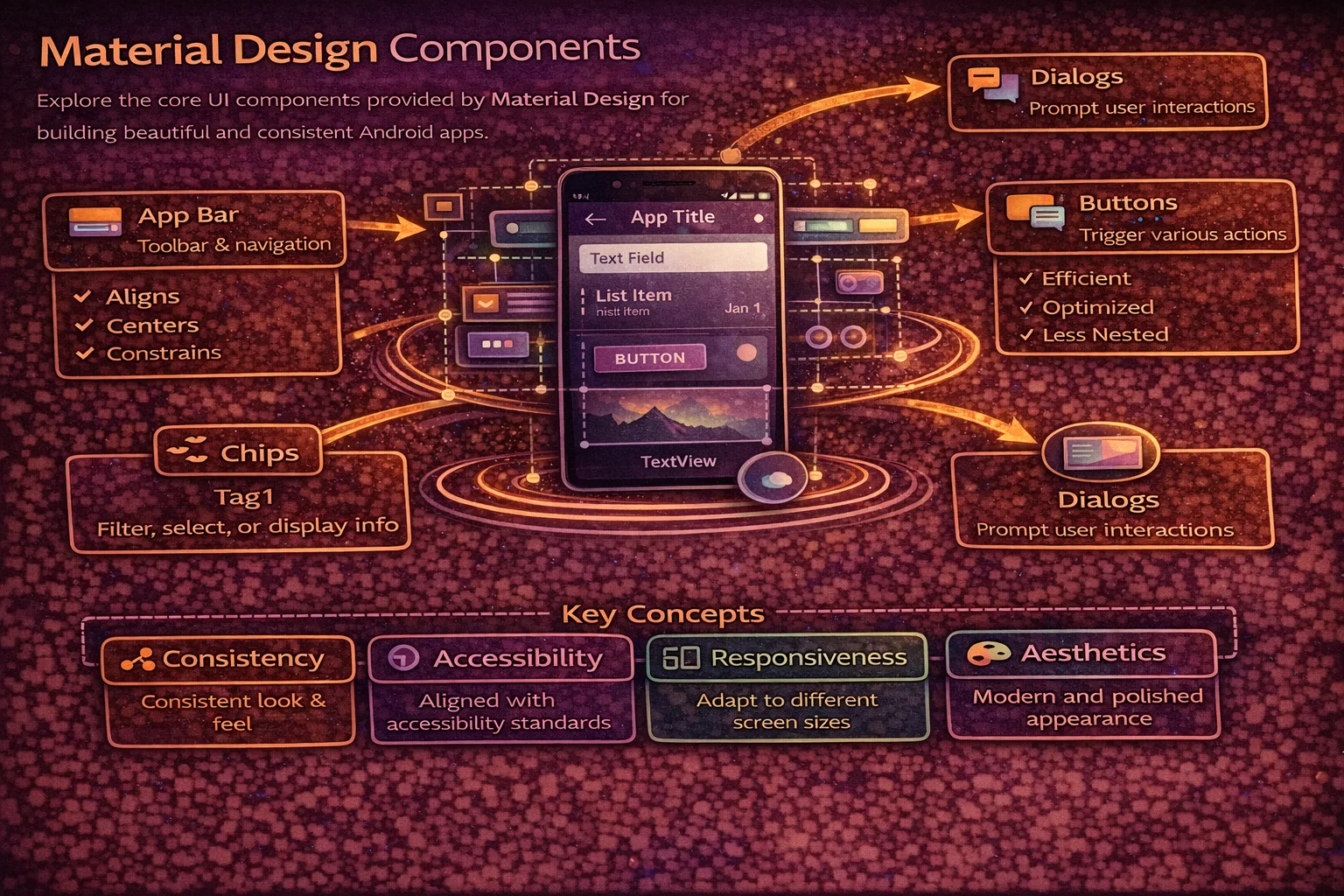
Material Design is Google’s design system for Android — and the Material Components library gives you ready-made, themed, production-quality widgets that follow the guidelines out of the box. Instead of building custom toolbars, bottom sheets, and dialog styles from scratch, you use pre-built components that handle theming, accessibility, animations, and edge cases for you. This guide covers the Material Components you’ll use in almost every Android app — with complete, copy-paste-ready examples.
Setup
// build.gradle.kts
dependencies {
    implementation("com.google.android.material:material:1.12.0")
}

// Your app theme must extend a Material3 theme:
// res/values/themes.xml
<style name="Theme.MyApp" parent="Theme.Material3.DayNight.NoActionBar">
    <item name="colorPrimary">@color/primary</item>
    <item name="colorOnPrimary">@color/on_primary</item>
    <item name="colorSecondary">@color/secondary</item>
    <item name="colorSurface">@color/surface</item>
    <item name="colorOnSurface">@color/on_surface</item>
    <item name="colorError">@color/error</item>
</style>

// Material3 themes automatically style all Material Components
// Change colorPrimary → all buttons, FABs, and selections update
TopAppBar (Toolbar)
<!-- Material3 TopAppBar replaces the old Toolbar -->
<com.google.android.material.appbar.MaterialToolbar
    android:id="@+id/toolbar"
    android:layout_width="match_parent"
    android:layout_height="?attr/actionBarSize"
    android:background="?attr/colorSurface"
    app:title="Articles"
    app:titleTextColor="?attr/colorOnSurface"
    app:navigationIcon="@drawable/ic_arrow_back"
    app:menu="@menu/toolbar_menu" />
// Set up in Activity/Fragment
binding.toolbar.setNavigationOnClickListener {
findNavController().navigateUp()
}
binding.toolbar.setOnMenuItemClickListener { menuItem ->
when (menuItem.itemId) {
R.id.action_search -> { openSearch(); true }
R.id.action_settings -> { openSettings(); true }
else -> false
}
}Collapsing Toolbar — scrolls and collapses with content
<androidx.coordinatorlayout.widget.CoordinatorLayout
    android:layout_width="match_parent"
    android:layout_height="match_parent">

    <com.google.android.material.appbar.AppBarLayout
        android:layout_width="match_parent"
        android:layout_height="wrap_content">

        <com.google.android.material.appbar.CollapsingToolbarLayout
            android:layout_width="match_parent"
            android:layout_height="200dp"
            app:layout_scrollFlags="scroll|exitUntilCollapsed"
            app:contentScrim="?attr/colorSurface"
            app:title="Article Title"
            app:expandedTitleGravity="bottom|start"
            app:expandedTitleMarginStart="16dp"
            app:expandedTitleMarginBottom="16dp">

            <ImageView
                android:layout_width="match_parent"
                android:layout_height="match_parent"
                android:scaleType="centerCrop"
                app:layout_collapseMode="parallax" />

            <com.google.android.material.appbar.MaterialToolbar
                android:id="@+id/toolbar"
                android:layout_width="match_parent"
                android:layout_height="?attr/actionBarSize"
                app:layout_collapseMode="pin" />

        </com.google.android.material.appbar.CollapsingToolbarLayout>
    </com.google.android.material.appbar.AppBarLayout>

    <androidx.core.widget.NestedScrollView
        android:layout_width="match_parent"
        android:layout_height="match_parent"
        app:layout_behavior="@string/appbar_scrolling_view_behavior">

        <!-- Content here -->

    </androidx.core.widget.NestedScrollView>
</androidx.coordinatorlayout.widget.CoordinatorLayout>
Bottom Navigation
<!-- Bottom navigation bar — 3 to 5 top-level destinations -->
<com.google.android.material.bottomnavigation.BottomNavigationView
    android:id="@+id/bottomNav"
    android:layout_width="match_parent"
    android:layout_height="wrap_content"
    android:layout_gravity="bottom"
    app:menu="@menu/bottom_nav_menu"
    app:labelVisibilityMode="labeled" />
<!-- res/menu/bottom_nav_menu.xml -->
<menu xmlns:android="http://schemas.android.com/apk/res/android">
<item
android:id="@+id/nav_home"
android:icon="@drawable/ic_home"
android:title="@string/home" />
<item
android:id="@+id/nav_search"
android:icon="@drawable/ic_search"
android:title="@string/search" />
<item
android:id="@+id/nav_bookmarks"
android:icon="@drawable/ic_bookmark"
android:title="@string/bookmarks" />
<item
android:id="@+id/nav_profile"
android:icon="@drawable/ic_person"
android:title="@string/profile" />
</menu>// Connect with Navigation Component
val navController = findNavController(R.id.navHostFragment)
binding.bottomNav.setupWithNavController(navController)
// Or handle manually
binding.bottomNav.setOnItemSelectedListener { item ->
when (item.itemId) {
R.id.nav_home -> { showHome(); true }
R.id.nav_search -> { showSearch(); true }
R.id.nav_bookmarks -> { showBookmarks(); true }
R.id.nav_profile -> { showProfile(); true }
else -> false
}
}
// Add badge (notification count)
val badge = binding.bottomNav.getOrCreateBadge(R.id.nav_bookmarks)
badge.number = 5
badge.isVisible = true
// Remove badge
binding.bottomNav.removeBadge(R.id.nav_bookmarks)Navigation Rail — for tablets
<!-- Use NavigationRailView instead of BottomNavigation on larger screens -->
<com.google.android.material.navigationrail.NavigationRailView
    android:id="@+id/navRail"
    android:layout_width="wrap_content"
    android:layout_height="match_parent"
    app:menu="@menu/bottom_nav_menu"
    app:headerLayout="@layout/nav_rail_header"
    app:labelVisibilityMode="labeled" />

<!-- Use the same menu as BottomNavigationView
     Switch between them based on screen size:
     Phone → BottomNavigationView
     Tablet → NavigationRailView -->
Floating Action Button (FAB)
<!-- Standard FAB -->
<com.google.android.material.floatingactionbutton.FloatingActionButton
    android:id="@+id/fab"
    android:layout_width="wrap_content"
    android:layout_height="wrap_content"
    android:layout_gravity="bottom|end"
    android:layout_margin="16dp"
    android:contentDescription="@string/add_article"
    app:srcCompat="@drawable/ic_add" />

<!-- Extended FAB — with text label -->
<com.google.android.material.floatingactionbutton.ExtendedFloatingActionButton
    android:id="@+id/extendedFab"
    android:layout_width="wrap_content"
    android:layout_height="wrap_content"
    android:layout_gravity="bottom|end"
    android:layout_margin="16dp"
    android:text="@string/new_article"
    app:icon="@drawable/ic_add" />
// Click handling
binding.fab.setOnClickListener {
navigateToCreateArticle()
}
// Extended FAB — shrink on scroll, extend on scroll up
binding.recyclerView.addOnScrollListener(object : RecyclerView.OnScrollListener() {
override fun onScrolled(recyclerView: RecyclerView, dx: Int, dy: Int) {
if (dy > 0) binding.extendedFab.shrink() // scrolling down
else binding.extendedFab.extend() // scrolling up
}
})
// Show/hide FAB
binding.fab.show()
binding.fab.hide()MaterialCardView
<com.google.android.material.card.MaterialCardView
    android:layout_width="match_parent"
    android:layout_height="wrap_content"
    android:layout_margin="8dp"
    app:cardCornerRadius="12dp"
    app:cardElevation="2dp"
    app:strokeColor="?attr/colorOutline"
    app:strokeWidth="1dp"
    app:cardBackgroundColor="?attr/colorSurface"
    android:clickable="true"
    android:focusable="true"
    android:foreground="?attr/selectableItemBackground">

    <!-- Card content -->
    <LinearLayout
        android:layout_width="match_parent"
        android:layout_height="wrap_content"
        android:orientation="vertical"
        android:padding="16dp">

        <TextView
            android:layout_width="match_parent"
            android:layout_height="wrap_content"
            android:text="Card Title"
            android:textAppearance="?attr/textAppearanceTitleMedium" />

        <TextView
            android:layout_width="match_parent"
            android:layout_height="wrap_content"
            android:layout_marginTop="8dp"
            android:text="Card content goes here"
            android:textAppearance="?attr/textAppearanceBodyMedium" />

    </LinearLayout>
</com.google.android.material.card.MaterialCardView>

<!-- Card styles:
     Elevated  — default, shadow/elevation
     Filled    — solid background color, no elevation
     Outlined  — stroke border, no elevation -->
Snackbar
// Basic snackbar
Snackbar.make(binding.root, "Article saved", Snackbar.LENGTH_SHORT).show()

// With action button
Snackbar.make(binding.root, "Article deleted", Snackbar.LENGTH_LONG)
    .setAction("Undo") {
        viewModel.undoDelete()
    }
    .show()

// Anchored above FAB (so it doesn't cover it)
Snackbar.make(binding.root, "Message sent", Snackbar.LENGTH_SHORT)
    .setAnchorView(binding.fab)
    .show()

// Custom styling
Snackbar.make(binding.root, "Error occurred", Snackbar.LENGTH_LONG)
    .setBackgroundTint(ContextCompat.getColor(this, R.color.error))
    .setTextColor(Color.WHITE)
    .setActionTextColor(Color.WHITE)
    .show()

// Snackbar vs Toast:
// Snackbar — can have action button, anchored to a View, dismissible, Material styled
// Toast — no interaction, floats globally, simpler
// Prefer Snackbar in most cases
Dialogs
AlertDialog — Material styled
// Basic alert dialog
MaterialAlertDialogBuilder(requireContext())
    .setTitle("Delete article?")
    .setMessage("This action cannot be undone.")
    .setPositiveButton("Delete") { _, _ ->
        viewModel.deleteArticle(articleId)
    }
    .setNegativeButton("Cancel", null)
    .show()

// Single choice (radio buttons)
val options = arrayOf("Newest first", "Oldest first", "Most popular")
var selectedIndex = 0

MaterialAlertDialogBuilder(requireContext())
    .setTitle("Sort by")
    .setSingleChoiceItems(options, selectedIndex) { _, which ->
        selectedIndex = which
    }
    .setPositiveButton("Apply") { _, _ ->
        viewModel.setSortOrder(selectedIndex)
    }
    .setNegativeButton("Cancel", null)
    .show()

// Multi choice (checkboxes)
val categories = arrayOf("Tech", "Science", "Business", "Sports")
val checked = booleanArrayOf(true, false, true, false)

MaterialAlertDialogBuilder(requireContext())
    .setTitle("Filter categories")
    .setMultiChoiceItems(categories, checked) { _, which, isChecked ->
        checked[which] = isChecked
    }
    .setPositiveButton("Apply") { _, _ ->
        viewModel.setFilters(categories.zip(checked.toList()))
    }
    .show()
Date and Time Pickers
// Date picker
val datePicker = MaterialDatePicker.Builder.datePicker()
    .setTitleText("Select date")
    .setSelection(MaterialDatePicker.todayInUtcMilliseconds())
    .build()

datePicker.addOnPositiveButtonClickListener { selection ->
    // selection is Long (timestamp in UTC milliseconds)
    val date = Instant.ofEpochMilli(selection).atZone(ZoneId.systemDefault()).toLocalDate()
    viewModel.setDate(date)
}

datePicker.show(parentFragmentManager, "DATE_PICKER")

// Time picker
val timePicker = MaterialTimePicker.Builder()
    .setTimeFormat(TimeFormat.CLOCK_12H)
    .setHour(9)
    .setMinute(0)
    .setTitleText("Select time")
    .build()

timePicker.addOnPositiveButtonClickListener {
    val hour = timePicker.hour
    val minute = timePicker.minute
    viewModel.setTime(hour, minute)
}

timePicker.show(parentFragmentManager, "TIME_PICKER")
Bottom Sheet
Modal Bottom Sheet (DialogFragment)
// Modal bottom sheet — appears over content, blocks interaction behind it

class SortBottomSheet : BottomSheetDialogFragment() {

    private var _binding: BottomSheetSortBinding? = null
    private val binding get() = _binding!!

    override fun onCreateView(inflater: LayoutInflater, container: ViewGroup?,
                              savedInstanceState: Bundle?): View {
        _binding = BottomSheetSortBinding.inflate(inflater, container, false)
        return binding.root
    }

    override fun onViewCreated(view: View, savedInstanceState: Bundle?) {
        super.onViewCreated(view, savedInstanceState)

        binding.sortNewest.setOnClickListener {
            setFragmentResult("sort", bundleOf("order" to "newest"))
            dismiss()
        }
        binding.sortOldest.setOnClickListener {
            setFragmentResult("sort", bundleOf("order" to "oldest"))
            dismiss()
        }
        binding.sortPopular.setOnClickListener {
            setFragmentResult("sort", bundleOf("order" to "popular"))
            dismiss()
        }
    }

    override fun onDestroyView() {
        super.onDestroyView()
        _binding = null
    }
}

// Show
SortBottomSheet().show(parentFragmentManager, "SORT_SHEET")

// Listen for result
setFragmentResultListener("sort") { _, bundle ->
    val order = bundle.getString("order", "newest")
    viewModel.setSortOrder(order)
}
Persistent Bottom Sheet (in layout)
<!-- Persistent bottom sheet — part of the layout, can be swiped up/down -->
<androidx.coordinatorlayout.widget.CoordinatorLayout
    android:layout_width="match_parent"
    android:layout_height="match_parent">

    <!-- Main content -->
    <FrameLayout
        android:layout_width="match_parent"
        android:layout_height="match_parent">
        <!-- Your main content here -->
    </FrameLayout>

    <!-- Bottom sheet -->
    <LinearLayout
        android:id="@+id/bottomSheet"
        android:layout_width="match_parent"
        android:layout_height="400dp"
        android:orientation="vertical"
        android:background="?attr/colorSurface"
        app:layout_behavior="com.google.android.material.bottomsheet.BottomSheetBehavior"
        app:behavior_peekHeight="80dp"
        app:behavior_hideable="false">

        <!-- Drag handle -->
        <com.google.android.material.bottomsheet.BottomSheetDragHandleView
            android:layout_width="match_parent"
            android:layout_height="wrap_content" />

        <!-- Sheet content -->
        <TextView
            android:layout_width="match_parent"
            android:layout_height="wrap_content"
            android:padding="16dp"
            android:text="Swipe up for details" />

    </LinearLayout>
</androidx.coordinatorlayout.widget.CoordinatorLayout>
// Control programmatically
val behavior = BottomSheetBehavior.from(binding.bottomSheet)
behavior.state = BottomSheetBehavior.STATE_EXPANDED // fully open
behavior.state = BottomSheetBehavior.STATE_COLLAPSED // peek height
behavior.state = BottomSheetBehavior.STATE_HIDDEN // hidden (if hideable)
// Listen for state changes
behavior.addBottomSheetCallback(object : BottomSheetBehavior.BottomSheetCallback() {
override fun onStateChanged(bottomSheet: View, newState: Int) {
when (newState) {
BottomSheetBehavior.STATE_EXPANDED -> { /* fully open */ }
BottomSheetBehavior.STATE_COLLAPSED -> { /* at peek height */ }
BottomSheetBehavior.STATE_HIDDEN -> { /* hidden */ }
}
}
override fun onSlide(bottomSheet: View, slideOffset: Float) {
// slideOffset: -1.0 (hidden) to 0.0 (collapsed) to 1.0 (expanded)
}
})Chips
<!-- Single chip -->
<com.google.android.material.chip.Chip
    android:layout_width="wrap_content"
    android:layout_height="wrap_content"
    android:text="Kotlin"
    app:chipIcon="@drawable/ic_code"
    android:checkable="true" />

<!-- ChipGroup — manages selection for a group of chips -->
<com.google.android.material.chip.ChipGroup
    android:id="@+id/chipGroup"
    android:layout_width="match_parent"
    android:layout_height="wrap_content"
    app:singleSelection="true"
    app:selectionRequired="true">

    <com.google.android.material.chip.Chip
        android:id="@+id/chipAll"
        style="@style/Widget.Material3.Chip.Filter"
        android:layout_width="wrap_content"
        android:layout_height="wrap_content"
        android:text="All"
        android:checked="true" />

    <com.google.android.material.chip.Chip
        android:id="@+id/chipTech"
        style="@style/Widget.Material3.Chip.Filter"
        android:layout_width="wrap_content"
        android:layout_height="wrap_content"
        android:text="Tech" />

    <com.google.android.material.chip.Chip
        android:id="@+id/chipScience"
        style="@style/Widget.Material3.Chip.Filter"
        android:layout_width="wrap_content"
        android:layout_height="wrap_content"
        android:text="Science" />

</com.google.android.material.chip.ChipGroup>

<!-- Chip styles:
     Widget.Material3.Chip.Assist    — actionable (icon + text)
     Widget.Material3.Chip.Filter    — filter selection (checkable)
     Widget.Material3.Chip.Input     — user input (removable, with close icon)
     Widget.Material3.Chip.Suggestion — suggested actions -->
// Listen for selection changes
binding.chipGroup.setOnCheckedStateChangeListener { group, checkedIds ->
val selectedCategory = when {
R.id.chipAll in checkedIds -> "all"
R.id.chipTech in checkedIds -> "tech"
R.id.chipScience in checkedIds -> "science"
else -> "all"
}
viewModel.filterByCategory(selectedCategory)
}
// Add chips dynamically
fun addTagChip(tag: String) {
val chip = Chip(requireContext()).apply {
text = tag
isCloseIconVisible = true
setOnCloseIconClickListener { binding.chipGroup.removeView(this) }
}
binding.chipGroup.addView(chip)
}TextInputLayout
<!-- Outlined text field (recommended) -->
<com.google.android.material.textfield.TextInputLayout
    android:id="@+id/emailLayout"
    android:layout_width="match_parent"
    android:layout_height="wrap_content"
    android:hint="Email"
    app:errorEnabled="true"
    app:counterEnabled="true"
    app:counterMaxLength="100"
    app:startIconDrawable="@drawable/ic_email"
    app:endIconMode="clear_text"
    style="@style/Widget.Material3.TextInputLayout.OutlinedBox">

    <com.google.android.material.textfield.TextInputEditText
        android:id="@+id/emailInput"
        android:layout_width="match_parent"
        android:layout_height="wrap_content"
        android:inputType="textEmailAddress"
        android:imeOptions="actionNext" />

</com.google.android.material.textfield.TextInputLayout>

<!-- Password field with toggle -->
<com.google.android.material.textfield.TextInputLayout
    android:id="@+id/passwordLayout"
    android:layout_width="match_parent"
    android:layout_height="wrap_content"
    android:hint="Password"
    app:endIconMode="password_toggle"
    style="@style/Widget.Material3.TextInputLayout.OutlinedBox">

    <com.google.android.material.textfield.TextInputEditText
        android:layout_width="match_parent"
        android:layout_height="wrap_content"
        android:inputType="textPassword" />

</com.google.android.material.textfield.TextInputLayout>

<!-- Dropdown (exposed dropdown menu) -->
<com.google.android.material.textfield.TextInputLayout
    android:id="@+id/categoryLayout"
    android:layout_width="match_parent"
    android:layout_height="wrap_content"
    android:hint="Category"
    style="@style/Widget.Material3.TextInputLayout.OutlinedBox.ExposedDropdownMenu">

    <AutoCompleteTextView
        android:id="@+id/categoryDropdown"
        android:layout_width="match_parent"
        android:layout_height="wrap_content"
        android:inputType="none" />

</com.google.android.material.textfield.TextInputLayout>
// Validation
binding.emailInput.doAfterTextChanged { text ->
binding.emailLayout.error = when {
text.isNullOrBlank() -> "Email is required"
!Patterns.EMAIL_ADDRESS.matcher(text).matches() -> "Invalid email"
else -> null // clears error
}
}
// Dropdown setup
val categories = listOf("Tech", "Science", "Business", "Sports")
val dropdownAdapter = ArrayAdapter(requireContext(), R.layout.list_item, categories)
binding.categoryDropdown.setAdapter(dropdownAdapter)
binding.categoryDropdown.setOnItemClickListener { _, _, position, _ ->
viewModel.setCategory(categories[position])
}TabLayout
<!-- Tabs + ViewPager2 -->
<com.google.android.material.tabs.TabLayout
    android:id="@+id/tabLayout"
    android:layout_width="match_parent"
    android:layout_height="wrap_content"
    app:tabMode="fixed"
    app:tabGravity="fill" />

<androidx.viewpager2.widget.ViewPager2
    android:id="@+id/viewPager"
    android:layout_width="match_parent"
    android:layout_height="0dp" />
// Set up ViewPager2 + TabLayout
binding.viewPager.adapter = object : FragmentStateAdapter(this) {
override fun getItemCount() = 3
override fun createFragment(position: Int): Fragment {
return when (position) {
0 -> AllArticlesFragment()
1 -> BookmarkedFragment()
2 -> TrendingFragment()
else -> throw IllegalArgumentException()
}
}
}
TabLayoutMediator(binding.tabLayout, binding.viewPager) { tab, position ->
tab.text = when (position) {
0 -> "All"
1 -> "Bookmarks"
2 -> "Trending"
else -> ""
}
tab.setIcon(when (position) {
0 -> R.drawable.ic_list
1 -> R.drawable.ic_bookmark
2 -> R.drawable.ic_trending
else -> 0
})
}.attach()SwipeRefreshLayout
<!-- Pull-to-refresh -->
<androidx.swiperefreshlayout.widget.SwipeRefreshLayout
    android:id="@+id/swipeRefresh"
    android:layout_width="match_parent"
    android:layout_height="match_parent">

    <androidx.recyclerview.widget.RecyclerView
        android:id="@+id/recyclerView"
        android:layout_width="match_parent"
        android:layout_height="match_parent" />

</androidx.swiperefreshlayout.widget.SwipeRefreshLayout>
// Handle refresh
binding.swipeRefresh.setOnRefreshListener {
viewModel.refresh()
}
// Stop the spinner when data loads
viewLifecycleOwner.lifecycleScope.launch {
viewLifecycleOwner.repeatOnLifecycle(Lifecycle.State.STARTED) {
viewModel.isRefreshing.collect { isRefreshing ->
binding.swipeRefresh.isRefreshing = isRefreshing
}
}
}
// Theming
binding.swipeRefresh.setColorSchemeResources(R.color.primary)
binding.swipeRefresh.setProgressBackgroundColorSchemeResource(R.color.surface)Common Mistakes to Avoid
Mistake 1: Not using a Material3 theme
<!-- ❌ Old AppCompat theme — Material Components won't style correctly -->
<style name="Theme.MyApp" parent="Theme.AppCompat.DayNight">

<!-- ✅ Material3 theme — all components are themed automatically -->
<style name="Theme.MyApp" parent="Theme.Material3.DayNight.NoActionBar">
Mistake 2: Using Toast when Snackbar is better
// ❌ Toast — no undo action, can't interact, floats randomly
Toast.makeText(this, "Article deleted", Toast.LENGTH_SHORT).show()

// ✅ Snackbar — has undo action, anchored, Material styled
Snackbar.make(binding.root, "Article deleted", Snackbar.LENGTH_LONG)
    .setAction("Undo") { viewModel.undoDelete() }
    .setAnchorView(binding.fab)
    .show()
Mistake 3: Building custom dialogs when Material provides them
// ❌ Custom dialog layout for a simple confirmation
val dialog = Dialog(this)
dialog.setContentView(R.layout.dialog_confirm)
dialog.findViewById<Button>(R.id.btnYes).setOnClickListener { /* ... */ }

// ✅ MaterialAlertDialogBuilder — handles theming, accessibility, animations
MaterialAlertDialogBuilder(this)
    .setTitle("Confirm")
    .setMessage("Are you sure?")
    .setPositiveButton("Yes") { _, _ -> /* ... */ }
    .setNegativeButton("No", null)
    .show()
Mistake 4: Forgetting to anchor Snackbar above FAB
// ❌ Snackbar covers the FAB
Snackbar.make(binding.root, "Saved", Snackbar.LENGTH_SHORT).show()

// ✅ Anchor above FAB
Snackbar.make(binding.root, "Saved", Snackbar.LENGTH_SHORT)
    .setAnchorView(binding.fab)
    .show()
Summary
- Use Material3 theme (
Theme.Material3.DayNight) — all components inherit correct colors and styles - MaterialToolbar replaces the old Toolbar — use with CollapsingToolbarLayout for scroll effects
- BottomNavigationView for 3-5 top-level destinations on phones; NavigationRailView for tablets
- FAB for the primary action; ExtendedFAB when a label helps; shrink/extend on scroll
- MaterialCardView for content containers — elevated, filled, or outlined styles
- Snackbar over Toast — supports actions (Undo), anchoring, and Material styling
- MaterialAlertDialogBuilder for alerts, single-choice, and multi-choice dialogs
- MaterialDatePicker / MaterialTimePicker for date and time selection
- BottomSheetDialogFragment for modal sheets; BottomSheetBehavior for persistent sheets
- Chips + ChipGroup for filters, tags, and selections (filter, input, assist, suggestion styles)
- TextInputLayout for text fields with hints, errors, counters, icons, password toggles, and dropdowns
- TabLayout + ViewPager2 connected via
TabLayoutMediatorfor swipeable tabs - SwipeRefreshLayout for pull-to-refresh on lists
Material Components give you production-quality widgets that handle theming, accessibility, animations, and dark mode automatically. Instead of reinventing buttons, dialogs, and bottom sheets, use the library — your app looks polished, follows platform conventions, and you ship faster.
Happy coding!
Comments (0)