
Compose Animations — Picking the Right API and Avoiding the Recomposition Trap
The first Compose animation I shipped to production was a 200ms fade on a price chip in a checkout screen. It looked great in the preview, fine on my Pixel, and absolutely catastrophic on a mid-range Samsung from 2021 — the chip would re-fade every time the cart recomposed, which on that screen happened roughly every keystroke in the coupon field. Animations in Compose aren’t hard because the APIs are bad. They’re hard because Compose has seven different ways to animate a value, and picking the wrong one turns a one-line change into a recomposition storm.
This post is the decision tree I wish someone had handed me on day one. We’ll cover animate*AsState, updateTransition, AnimatedVisibility, AnimatedContent, Animatable, infinite animations, and the Crossfade shortcut — and more importantly, when to reach for which one.
The One Question That Picks Your API
Before any code, ask: what’s driving the animation?
- A state value changing (color, size, alpha) →
animate*AsState - Multiple values changing together based on the same state →
updateTransition - A composable appearing or disappearing →
AnimatedVisibility - The content itself swapping based on state →
AnimatedContentorCrossfade - A gesture or imperative trigger (fling, snap-back, sequence) →
Animatable - Something that never stops (loading shimmer, pulse) →
rememberInfiniteTransition
Get this right and the rest is mostly tweaking durations. Get it wrong and you’ll fight your animations for weeks.
animate*AsState — The 80% Case
This is the API you’ll reach for most often. State changes, value glides to the new target. That’s it.
@Composable
fun LikeButton(liked: Boolean, onClick: () -> Unit) {
    val color by animateColorAsState(
        // animateColorAsState is a TOP-LEVEL FUNCTION from compose.animation
        // Returns a State<Color> that animates to the new target whenever it changes
        targetValue = if (liked) Color.Red else Color.Gray,
        animationSpec = tween(durationMillis = 250),
        // tween is a FUNCTION returning TweenSpec, the most common animationSpec
        label = “like_color”
        // label is REQUIRED on Compose 1.6+ for the Animation Inspector tool
    )

    val scale by animateFloatAsState(
        targetValue = if (liked) 1.2f else 1.0f,
        animationSpec = spring(
            // spring is a FUNCTION returning SpringSpec — physics-based, no fixed duration
            dampingRatio = Spring.DampingRatioMediumBouncy,
            stiffness = Spring.StiffnessLow
        ),
        label = “like_scale”
    )

    Icon(
        imageVector = Icons.Default.Favorite,
        contentDescription = null,
        tint = color,
        modifier = Modifier
            .graphicsLayer {
                // graphicsLayer is preferred over Modifier.scale for animated values
                // It does NOT trigger layout — only the draw phase
                scaleX = scale
                scaleY = scale
            }
            .clickable(onClick = onClick)
    )
}
Two things worth lingering on here. First, spring vs tween. Tween gives you a fixed duration with an easing curve — predictable, good for UI chrome (color, alpha). Spring gives you physics — great for anything that should feel responsive, like a button press or a draggable card snapping back. As a rule: tween for chrome, spring for interaction.
Second, graphicsLayer instead of Modifier.scale. This is the kind of thing that bites you on cheap devices. Modifier.scale reads its parameter at composition time, so changing it triggers recomposition. graphicsLayer { scaleX = scale } defers the read into the draw phase — same visual result, no recomposition, no layout pass. For animated values, always use the lambda form.
updateTransition — When Multiple Values Move Together
Imagine a card that, when selected, gets a border, raises its elevation, scales up slightly, and changes background color. You could write four animate*AsState calls. But they’ll each interpret the state independently, you’ll repeat the if (selected) branch four times, and they won’t share a clock. updateTransition fixes all three.
@Composable
fun SelectableCard(selected: Boolean) {
    val transition = updateTransition(
        // updateTransition is a TOP-LEVEL FUNCTION from compose.animation.core
        // Creates a Transition<T> that drives multiple child animations off one state
        targetState = selected,
        label = “card_selection”
    )

    val borderWidth by transition.animateDp(
        // animateDp is an EXTENSION FUNCTION on Transition
        transitionSpec = { tween(200) },
        label = “border”
    ) { isSelected -> if (isSelected) 2.dp else 0.dp }

    val elevation by transition.animateDp(
        transitionSpec = { tween(200) },
        label = “elevation”
    ) { isSelected -> if (isSelected) 8.dp else 2.dp }

    val bg by transition.animateColor(
        transitionSpec = { tween(200) },
        label = “bg”
    ) { isSelected -> if (isSelected) Color(0xFFE3F2FD) else Color.White }

    Card(
        modifier = Modifier
            .border(borderWidth, MaterialTheme.colorScheme.primary)
            .shadow(elevation),
        colors = CardDefaults.cardColors(containerColor = bg)
    ) {
        // ... content
    }
}
The state branching now lives inside each animation lambda, not around the whole composable. Cleaner. And critically, all three values are driven by the same Transition — if you ever want different specs per direction (faster on select, slower on deselect), the transitionSpec lambda gets initialState and targetState to branch on.
AnimatedVisibility — Appearing and Disappearing
You can’t animate a composable that doesn’t exist. So when something needs to enter or leave the tree, you need AnimatedVisibility, which keeps the composable alive long enough to play the exit animation.
@Composable
fun ErrorBanner(error: String?) {
    AnimatedVisibility(
        // AnimatedVisibility is a COMPOSABLE FUNCTION from compose.animation
        visible = error != null,
        enter = slideInVertically(
            // slideInVertically is a FUNCTION returning EnterTransition
            initialOffsetY = { fullHeight -> -fullHeight }
            // Slide in from the top
        ) + fadeIn(),
        // EnterTransitions can be combined with the + operator
        exit = slideOutVertically(
            targetOffsetY = { fullHeight -> -fullHeight }
        ) + fadeOut()
    ) {
        // The lambda still composes during the exit animation
        // So we need to remember the last non-null error to display while sliding out
        val lastError = remember(error) { error ?: “” }
        Surface(color = MaterialTheme.colorScheme.errorContainer) {
            Text(lastError, modifier = Modifier.padding(16.dp))
        }
    }
}
That comment about remember(error) { error ?: “” } is the pitfall everyone hits. When error goes from a String to null, the lambda still recomposes during the exit. If you write Text(error!!), you’ll crash on the way out. 💥 Either guard with a remembered last-known-good value, or use AnimatedContent instead (next section) which gives you the target state explicitly.
AnimatedContent — When the Content Itself Changes
Use AnimatedContent when you’re swapping what’s shown based on state, not just toggling visibility. Counter going up, screen state changing from Loading to Success, tab switching with a slide.
@Composable
fun ScoreDisplay(score: Int) {
    AnimatedContent(
        // AnimatedContent is a COMPOSABLE FUNCTION from compose.animation
        targetState = score,
        transitionSpec = {
            // The receiver here is AnimatedContentTransitionScope
            // It exposes initialState and targetState so you can branch
            if (targetState > initialState) {
                // Score went up — new value slides up from below
                slideInVertically { it } + fadeIn() togetherWith
                    slideOutVertically { -it } + fadeOut()
                // togetherWith is an INFIX FUNCTION combining enter + exit into ContentTransform
            } else {
                // Score went down — opposite direction
                slideInVertically { -it } + fadeIn() togetherWith
                    slideOutVertically { it } + fadeOut()
            }.using(SizeTransform(clip = false))
            // SizeTransform animates the container resizing between contents
        },
        label = “score”
    ) { targetScore ->
        // The lambda receives the TARGET state — safe to use directly
        Text(
            text = “$targetScore points”,
            style = MaterialTheme.typography.headlineLarge
        )
    }
}
The win here is the lambda receives targetScore as a parameter. No null guards, no remembered fallbacks — the framework hands you the right value for the slot it’s currently rendering. For loading/success/error screens this is dramatically cleaner than juggling visibility flags.
If all you need is a fade between two contents, Crossfade is the one-liner shortcut:
Crossfade(targetState = uiState, label = “screen”) { state ->
    when (state) {
        is UiState.Loading -> LoadingScreen()
        is UiState.Success -> ContentScreen(state.data)
        is UiState.Error -> ErrorScreen(state.message)
    }
}
Animatable — The Imperative Escape Hatch
Everything above is declarative — you describe a target, Compose animates to it. But sometimes you need imperative control: a draggable card that snaps back when released, a fling animation, a sequence (“scale to 1.2x, then settle to 1.0x, then change color”). That’s Animatable.
@Composable
fun DraggableCard() {
    val offsetX = remember { Animatable(0f) }
    // Animatable is a CLASS from compose.animation.core
    // Holds a value and gives you suspend functions to animate it
    val scope = rememberCoroutineScope()

    Box(
        modifier = Modifier
            .offset { IntOffset(offsetX.value.roundToInt(), 0) }
            .pointerInput(Unit) {
                detectHorizontalDragGestures(
                    onHorizontalDrag = { _, dragAmount ->
                        scope.launch {
                            // snapTo bypasses animation — for follow-the-finger feel
                            offsetX.snapTo(offsetX.value + dragAmount)
                        }
                    },
                    onDragEnd = {
                        scope.launch {
                            // animateTo IS animated — spring back to zero
                            offsetX.animateTo(
                                targetValue = 0f,
                                animationSpec = spring(
                                    dampingRatio = Spring.DampingRatioMediumBouncy
                                )
                            )
                        }
                    }
                )
            }
            .background(Color.Blue)
            .size(100.dp)
    )
}
The mental shift: animate*AsState reacts to state, Animatable is the state. You drive it from coroutines. Three suspend functions matter: snapTo (no animation, instant), animateTo (animate to a target), and animateDecay (fling with a velocity, useful for momentum scrolling). Sequences become trivial:
scope.launch {
    scale.animateTo(1.2f, tween(150))    // ✅ pop out
    scale.animateTo(1.0f, spring())      // ✅ settle back
    color.animateTo(Color.Red, tween(200))  // ✅ then color change
}
Infinite Animations — Loaders and Pulses
Anything that loops forever — shimmer effects, breathing pulses, loading spinners — uses rememberInfiniteTransition. Same idea as updateTransition, but it never stops.
@Composable
fun ShimmerBox(modifier: Modifier = Modifier) {
    val transition = rememberInfiniteTransition(label = “shimmer”)
    // rememberInfiniteTransition is a COMPOSABLE FUNCTION from compose.animation.core

    val translateX by transition.animateFloat(
        initialValue = 0f,
        targetValue = 1000f,
        animationSpec = infiniteRepeatable(
            // infiniteRepeatable is a FUNCTION returning InfiniteRepeatableSpec
            animation = tween(1200, easing = LinearEasing),
            repeatMode = RepeatMode.Restart
            // RepeatMode.Restart jumps back to start; RepeatMode.Reverse ping-pongs
        ),
        label = “shimmer_x”
    )

    Box(
        modifier = modifier
            .background(
                brush = Brush.linearGradient(
                    colors = listOf(
                        Color.LightGray.copy(alpha = 0.6f),
                        Color.LightGray.copy(alpha = 0.2f),
                        Color.LightGray.copy(alpha = 0.6f)
                    ),
                    start = Offset(translateX - 500f, 0f),
                    end = Offset(translateX, 0f)
                )
            )
    )
}
One important note: infinite animations do not pause when the screen is off or the app is backgrounded by default. If you have ten shimmer boxes on a screen that’s no longer visible, they’re all still recomposing. In practice, when the composable leaves the composition (e.g. you navigate away), the animation stops — but if you show a shimmer behind a dialog or in a tab that’s technically still composed, watch your battery profiler.
The Recomposition Trap (Revisiting My Bug)
Back to the price chip story. Here’s roughly the code I shipped:
// ❌ The version that crashed mid-range devices
@Composable
fun PriceChip(price: Double) {
    val animatedPrice by animateFloatAsState(
        targetValue = price.toFloat(),
        label = “price”
    )
    Text(“$$animatedPrice”)
    // Every parent recomposition reads animatedPrice and recomposes Text
}
Looks innocent. The problem: animatedPrice changes continuously during the animation — that’s the whole point. And every change recomposes PriceChip, and because the chip is inline in a parent that also reads cart state, things cascade. The fix:
// ✅ Defer the state read into the layout/draw phase
@Composable
fun PriceChip(price: Double) {
    val animatedPrice by animateFloatAsState(
        targetValue = price.toFloat(),
        label = “price”
    )
    Text(
        text = “”,
        modifier = Modifier.drawWithContent {
            // We’re in the draw phase here — reads here don’t trigger recomposition
            drawContext.canvas.nativeCanvas.drawText(
                “$${“%.2f”.format(animatedPrice)}”,
                0f, size.height / 2,
                android.graphics.Paint().apply { textSize = 48f }
            )
        }
    )
}
That specific fix is ugly — you don’t usually drop into nativeCanvas. The cleaner pattern most of the time is what we already saw: animated values that drive visual properties go through graphicsLayer { } or Modifier.offset { } (the lambda variants), not through composition. The general rule is worth tattooing: animated values should be read in the lowest possible phase. Composition > Layout > Draw, in increasing order of cheapness for frequent reads.
Specs Worth Memorizing
You don’t need every AnimationSpec, but four cover most cases:
// 1. tween — fixed duration, easing curve. Default for UI chrome.
tween(durationMillis = 300, easing = FastOutSlowInEasing)

// 2. spring — physics, no duration. Default for interaction.
spring(dampingRatio = Spring.DampingRatioMediumBouncy, stiffness = Spring.StiffnessMedium)

// 3. keyframes — manual control at specific timestamps. For choreography.
keyframes {
    durationMillis = 1000
    0.0f at 0
    1.2f at 200 using FastOutSlowInEasing
    0.9f at 600
    1.0f at 1000
}

// 4. snap — instantly jump (with optional delay). For conditional non-animations.
snap(delayMillis = 100)
For easing, the Material defaults — FastOutSlowInEasing, LinearOutSlowInEasing, FastOutLinearInEasing — are tuned for UI motion and you should reach for them before custom curves. Linear easing almost always looks robotic; avoid it except for indeterminate progress.
Pitfalls I Keep Seeing in Code Reviews
Forgetting label. Every animation API takes a label parameter. It’s required by the lint rule on Compose 1.6+, and it’s what shows up in the Animation Inspector. Skipping it makes debugging a guessing game.
Animating layout-affecting properties through composition. If you animate width, height, or padding by reading a State<Dp> in the parameter, every frame triggers a layout pass for that subtree. For frequent or smooth animations, prefer graphicsLayer (transforms only) over actual layout changes. If you must change layout, scope it as tight as possible — don’t animate the height of a parent when you could animate the height of a child.
Mixing Animatable reads at composition time. Reading animatable.value directly in a composable’s parameters is the same recomposition trap. Same fix — read it inside graphicsLayer or Modifier.offset { } lambdas.
Forgetting that AnimatedVisibility’s content recomposes during exit. Cover the “state already gone” case or switch to AnimatedContent.
Spring animations with mismatched stiffness across siblings. If a card’s border, elevation, and color are all animated as separate animate*AsState with springs of different stiffness, they’ll arrive at slightly different times and the card looks like it’s vibrating apart. Use updateTransition or align the specs.
Picking the Right Tool, In One Table
┌────────────────────────────────────────────────────────────────────────┐
│ Need                                       │ Use                       │
├────────────────────────────────────────────┼───────────────────────────┤
│ One value reacts to state                  │ animate*AsState           │
│ Multiple values from same state            │ updateTransition          │
│ Composable enters/leaves                   │ AnimatedVisibility        │
│ Content swaps based on state               │ AnimatedContent           │
│ Simple fade between contents               │ Crossfade                 │
│ Imperative control / gestures / sequences  │ Animatable                │
│ Loops forever (shimmer, pulse)             │ rememberInfiniteTransition│
└────────────────────────────────────────────────────────────────────────┘
Closing Thought
The trap with Compose animations isn’t that they’re hard to write — animateFloatAsState is a one-liner. It’s that they’re easy to write incorrectly in ways that don’t show up until you’re testing on a 2-year-old midrange device with an active recomposition profiler. Pick the right API for what’s driving the animation, push reads into the lowest phase you can, and label everything. Do those three things and 90% of the weird animation bugs you’ll see in code reviews disappear.
Happy coding!
Related articles
Compose Gestures Deep Dive — pointerInput, Multi-Touch, and Conflict Resolution
Compose Custom Layouts — From Layout {} to SubcomposeLayout, with Real Use Cases
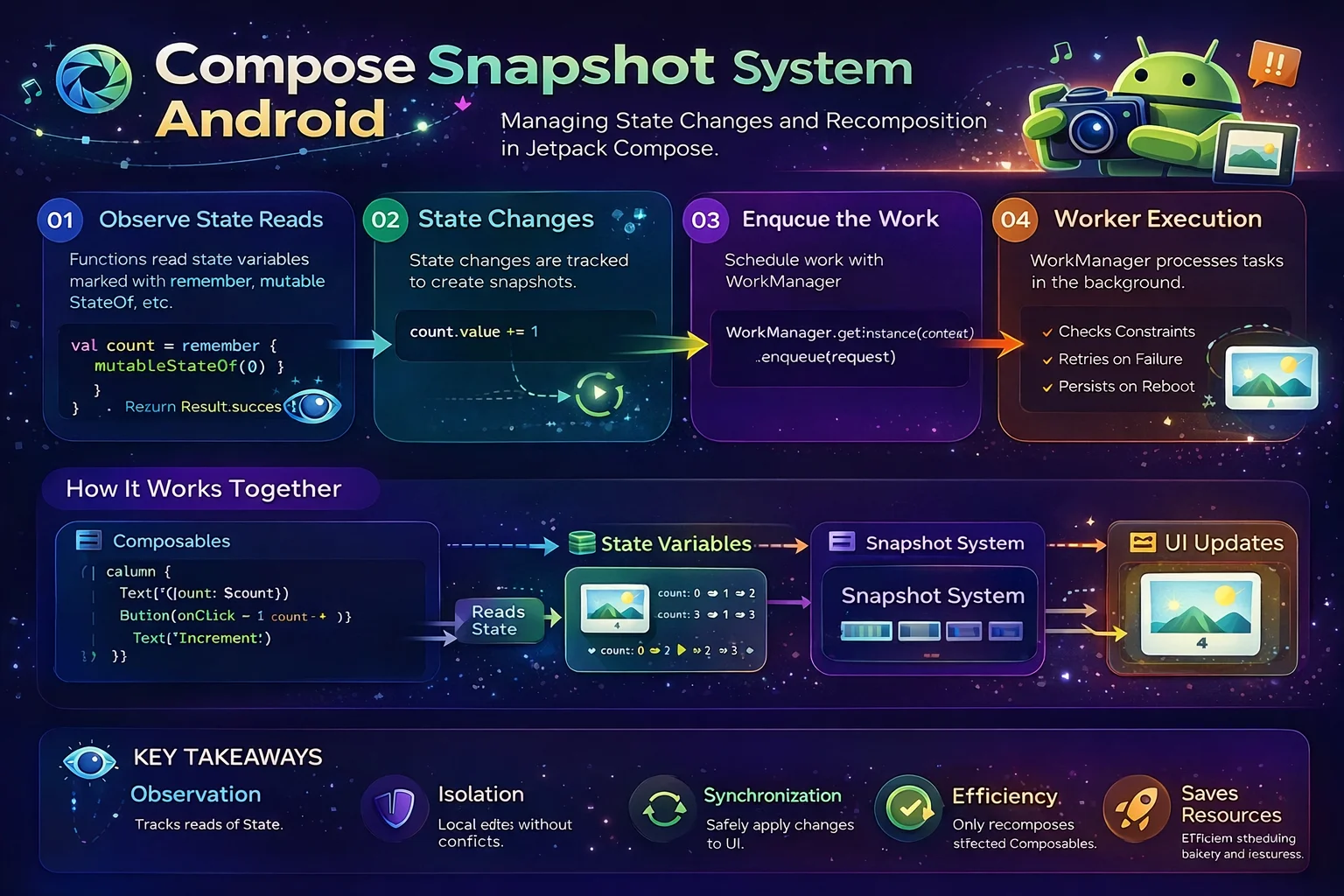
Compose Snapshot System — How mutableStateOf Tracks Reads, Writes, and Triggers Recomposition

Hilt Dependency Injection — Compile-Time Code Gen, Internals, Compose Injection, @EntryPoint, and Production Patterns

Comments (0)
Sign in to leave a comment.
No comments yet. Be the first to share your thoughts.