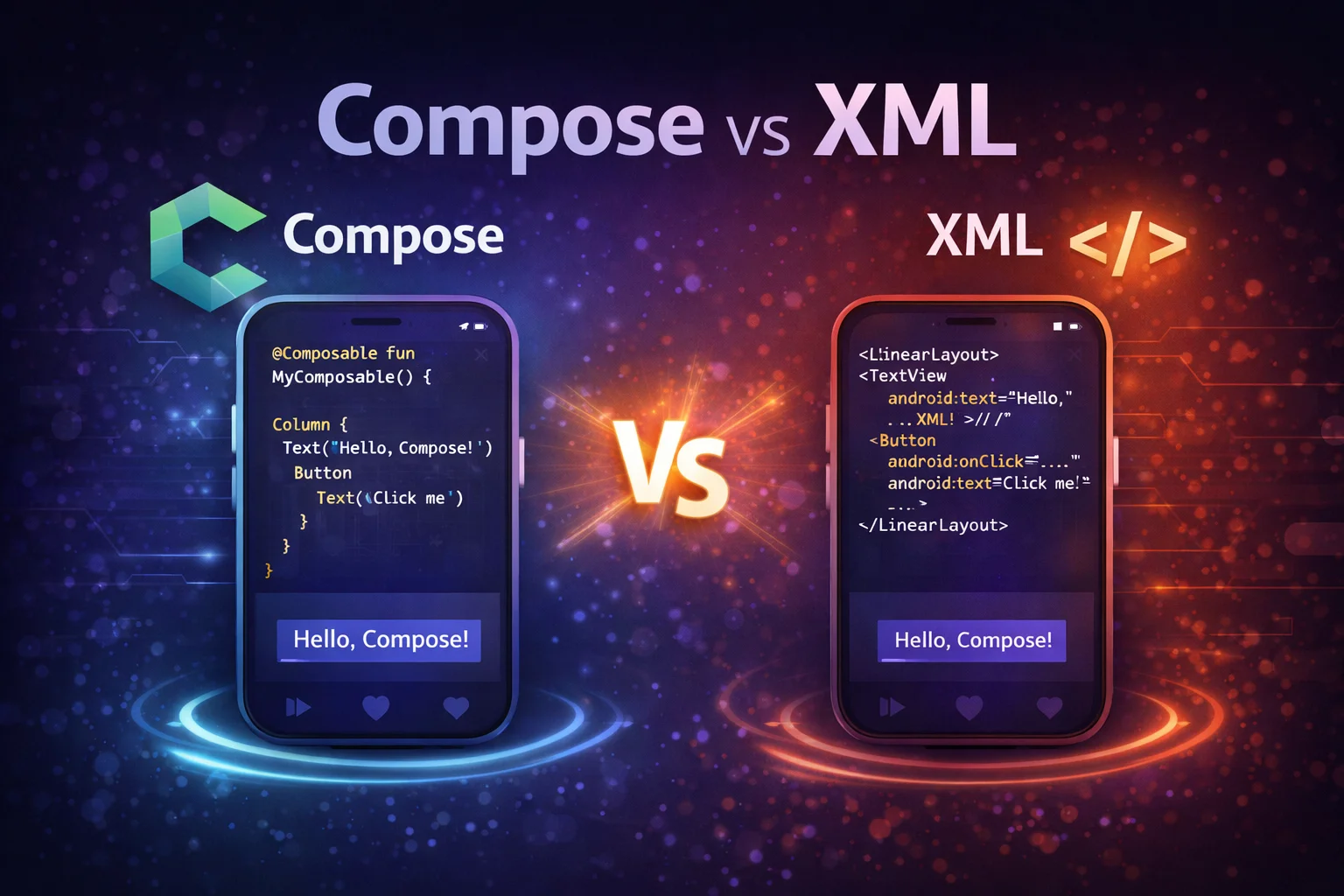
Should you use Jetpack Compose or stick with XML Views? Should you rewrite your entire app or migrate gradually? These are real questions every Android team faces. The answer isn’t “Compose is always better” — it depends on your codebase, team experience, timeline, and features. This guide gives you a clear, honest comparison, the interop APIs that let both coexist, and a practical migration strategy used by real production apps.
Feature Comparison
// ┌──────────────────────────┬───────────────────────┬─────────────────────────┐
// │ Feature                  │ XML Views             │ Jetpack Compose         │
// ├──────────────────────────┼───────────────────────┼─────────────────────────┤
// │ UI definition            │ XML files             │ Kotlin functions        │
// │ UI element               │ View (CLASS)          │ Composable (FUNCTION)   │
// │ Layout system            │ Multi-pass measure    │ Single-pass measure     │
// │ State management         │ Manual (observe +     │ Automatic (recomposition│
// │                          │ update Views)         │ on state change)        │
// │ Lists                    │ RecyclerView +        │ LazyColumn (one         │
// │                          │ Adapter + DiffUtil     │ function, no adapter)   │
// │ Theming                  │ XML styles + themes   │ MaterialTheme +         │
// │                          │                       │ CompositionLocal        │
// │ Preview                  │ Layout preview        │ @Preview annotation     │
// │                          │ (limited interaction) │ (interactive, multiple) │
// │ Navigation               │ NavGraph XML +        │ NavHost composable +    │
// │                          │ Fragment destinations │ type-safe routes        │
// │ Animation                │ Animator, Transition  │ animate*AsState,        │
// │                          │ API, MotionLayout     │ AnimatedVisibility      │
// │ Custom drawing           │ Custom View + Canvas  │ Canvas composable +     │
// │                          │ (CLASS, override draw)│ Modifier.drawBehind     │
// │ Accessibility            │ contentDescription +  │ semantics modifier +    │
// │                          │ AccessibilityDelegate │ built-in support        │
// │ Testing                  │ Espresso              │ ComposeTestRule         │
// │ Code reuse               │ Custom View/include   │ Composable functions    │
// │ Conditional UI           │ visibility GONE/VISIBLE│ if/when in Kotlin      │
// │ Learning curve           │ Well-documented,      │ New paradigm (reactive, │
// │                          │ most tutorials exist  │ declarative)            │
// │ Maturity                 │ 14+ years             │ Stable since 2021       │
// │ Google's direction       │ Maintenance mode      │ Active development      │
// └──────────────────────────┴───────────────────────┴─────────────────────────┘
Where Compose Wins
// 1. LESS BOILERPLATE — same UI, far less code
//
// XML: layout file + ViewBinding + Adapter + ViewHolder + DiffUtil + Fragment
// Compose: one composable function

// XML version of a simple list item:
// item_article.xml (30 lines)
// ArticleAdapter.kt (40 lines)
// ArticleViewHolder.kt (20 lines)
// ArticleDiffCallback.kt (15 lines)
// Fragment setup (15 lines)
// Total: ~120 lines across 5 files

// Compose version:
@Composable
fun ArticleList(articles: List<Article>, onClick: (Article) -> Unit) {
    LazyColumn {
        items(articles, key = { it.id }) { article ->
            ArticleCard(article = article, onClick = { onClick(article) })
        }
    }
}
// Total: ~20 lines in 1 file

// 2. DECLARATIVE STATE — no manual View updates
//
// XML: observe state → manually update each View
viewModel.uiState.collect { state ->
    binding.titleText.text = state.title         // manual
    binding.loadingView.isVisible = state.isLoading  // manual
    binding.errorView.isVisible = state.hasError     // manual
    binding.contentView.isVisible = !state.isLoading // manual
}

// Compose: describe UI as a function of state — automatic
@Composable
fun Screen(uiState: UiState) {
    when (uiState) {
        is Loading -> CircularProgressIndicator()
        is Success -> Text(uiState.title)
        is Error -> ErrorView(uiState.message)
    }
    // Compose figures out what changed and updates only that
}

// 3. CONDITIONAL UI — just use Kotlin
//
// XML: set visibility GONE/VISIBLE, risk forgetting to hide something
binding.premiumBadge.isVisible = user.isPremium
binding.adBanner.isVisible = !user.isPremium
// Easy to forget one — stale UI

// Compose: if/when — missing cases are obvious
if (user.isPremium) { PremiumBadge() } else { AdBanner() }
// Only one exists in the Composition at a time — no stale Views

// 4. PREVIEW — multiple previews, interactive, parameterized
@Preview(name = "Light") @Preview(name = "Dark", uiMode = UI_MODE_NIGHT_YES)
@Preview(name = "Large font", fontScale = 1.5f)
@Composable
fun CardPreview() { ArticleCard(sampleArticle) }
// Three previews in one annotation — XML preview can't do this

// 5. ANIMATION — built-in, declarative
val alpha by animateFloatAsState(if (visible) 1f else 0f)
// animateFloatAsState() is a COMPOSABLE FUNCTION that animates between values
// One line — no Animator, no ObjectAnimator, no XML animation resources
Where XML Still Wins (or is Acceptable)
// 1. EXISTING LARGE CODEBASES
// Rewriting 500+ XML layouts to Compose is not practical overnight
// Gradual migration is the answer (covered below)

// 2. TEAM EXPERIENCE
// If your team knows XML well and has no Compose experience,
// forcing Compose on a critical deadline is risky
// Train gradually — new features in Compose, existing screens stay XML

// 3. SPECIFIC WIDGETS
// Some Android widgets only exist as Views (no Compose equivalent yet):
// - MapView (Google Maps) — use AndroidView to wrap it
// - WebView — use AndroidView
// - AdView (ads) — use AndroidView
// - Some third-party SDKs only provide Views

// 4. COMPLEX CANVAS / CUSTOM VIEWS
// If you have heavily customized Views with complex touch handling,
// migrating them to Compose Canvas may not be worth the effort
// Wrap them with AndroidView instead

// 5. STABLE, WORKING SCREENS
// "If it ain't broke, don't fix it"
// Rewriting a stable, well-tested XML screen adds risk with zero user benefit
// Focus Compose efforts on NEW features and BUGGY screens
Interop — Using Both Together
Compose inside XML — ComposeView
Use ComposeView to embed Compose UI inside an existing XML layout. This is the most common starting point for migration:
// ComposeView is a CLASS that extends android.view.View (AbstractComposeView)
// It hosts Compose content inside the traditional View hierarchy

// Step 1: Add ComposeView to your XML layout
// res/layout/fragment_article.xml
// <LinearLayout>
//     <!-- Existing XML Views -->
//     <TextView android:id="@+id/titleText" />
//
//     <!-- Compose island -->
//     <androidx.compose.ui.platform.ComposeView
//         android:id="@+id/composeView"
//         android:layout_width="match_parent"
//         android:layout_height="wrap_content" />
//
//     <!-- More existing XML Views -->
//     <Button android:id="@+id/submitButton" />
// </LinearLayout>

// Step 2: Set Compose content in Fragment/Activity
class ArticleFragment : Fragment(R.layout.fragment_article) {

    override fun onViewCreated(view: View, savedInstanceState: Bundle?) {
        super.onViewCreated(view, savedInstanceState)

        val binding = FragmentArticleBinding.bind(view)

        // Existing XML code continues to work
        binding.titleText.text = "Article Title"

        // Set Compose content in the ComposeView
        binding.composeView.apply {
            setViewCompositionStrategy(ViewCompositionStrategy.DisposeOnViewTreeLifecycleDestroyed)
            // setViewCompositionStrategy() is a FUNCTION on AbstractComposeView
            // ViewCompositionStrategy is a SEALED INTERFACE
            // DisposeOnViewTreeLifecycleDestroyed is an OBJECT — disposes Composition
            // when the View's lifecycle is destroyed (correct for Fragments)

            setContent {
                // setContent {} is a FUNCTION on AbstractComposeView
                // Everything inside is Compose!
                MaterialTheme {
                    TagChips(
                        tags = article.tags,
                        onTagClick = { tag -> viewModel.filterByTag(tag) }
                    )
                }
            }
        }
    }
}
ViewCompositionStrategy options
// ViewCompositionStrategy controls WHEN the Composition is disposed
// Choosing the wrong one causes memory leaks or premature disposal

// DisposeOnViewTreeLifecycleDestroyed (recommended for Fragments)
// Disposes when the Fragment's VIEW lifecycle is destroyed
// ✅ Correct for Fragments (handles back stack properly)
setViewCompositionStrategy(ViewCompositionStrategy.DisposeOnViewTreeLifecycleDestroyed)

// DisposeOnDetachedFromWindow (default)
// Disposes when the View is detached from the window
// ⚠️ Problematic in Fragments — view detach doesn't always mean lifecycle end
setViewCompositionStrategy(ViewCompositionStrategy.DisposeOnDetachedFromWindow)

// DisposeOnLifecycleDestroyed(lifecycle)
// Disposes when a specific Lifecycle is destroyed
setViewCompositionStrategy(
    ViewCompositionStrategy.DisposeOnLifecycleDestroyed(viewLifecycleOwner.lifecycle)
)

// Rule of thumb:
// In Fragment → DisposeOnViewTreeLifecycleDestroyed
// In Activity → DisposeOnDetachedFromWindow (default) or DisposeOnViewTreeLifecycleDestroyed
// In RecyclerView ViewHolder → DisposeOnDetachedFromWindow
XML Views inside Compose — AndroidView
Use AndroidView to embed traditional Views inside Compose. Useful for Views that don’t have Compose equivalents:
// AndroidView is a COMPOSABLE FUNCTION from compose.ui.viewinterop
// It creates and manages a traditional View inside the Composition

// Google Maps inside Compose
@Composable
fun MapScreen() {
    AndroidView(
        factory = { context ->
            // factory is called ONCE to create the View
            // context is the Android Context
            // Returns the View to embed
            MapView(context).apply {
                onCreate(null)
                getMapAsync { googleMap ->
                    googleMap.moveCamera(CameraUpdateFactory.newLatLng(LatLng(37.7749, -122.4194)))
                }
            }
        },
        modifier = Modifier.fillMaxSize(),
        update = { mapView ->
            // update is called on every recomposition
            // Use to update the View with new Compose state
            // mapView is the View created by factory
        }
    )
}

// WebView inside Compose
@Composable
fun WebContent(url: String) {
    AndroidView(
        factory = { context ->
            WebView(context).apply {
                webViewClient = WebViewClient()
                settings.javaScriptEnabled = true
            }
        },
        update = { webView ->
            webView.loadUrl(url)   // called when url changes
        },
        modifier = Modifier.fillMaxSize()
    )
}

// Ad banner inside Compose
@Composable
fun AdBanner() {
    AndroidView(
        factory = { context ->
            AdView(context).apply {
                setAdSize(AdSize.BANNER)
                adUnitId = "ca-app-pub-xxx/yyy"
                loadAd(AdRequest.Builder().build())
            }
        },
        modifier = Modifier.fillMaxWidth()
    )
}

// AndroidView lifecycle:
// factory → called ONCE when entering Composition (creates the View)
// update → called on EVERY recomposition (updates the View)
// onReset → called when the View is recycled (optional, for LazyColumn)
// onRelease → called when leaving Composition (cleanup)
Migration Strategy — The Gradual Approach
// The recommended approach: BOTTOM-UP migration
// Start with small, leaf-level composables → work up to full screens
//
//  Phase 1: Compose Islands                Phase 2: Compose Screens
//  ┌─────────────────────┐                 ┌─────────────────────┐
//  │ XML Activity        │                 │ XML Activity        │
//  │  ┌───────────────┐  │                 │  ┌───────────────┐  │
//  │  │ XML Fragment   │  │                 │  │ COMPOSE Screen│  │
//  │  │ ┌───────────┐ │  │                 │  │ (full screen  │  │
//  │  │ │ XML Views │ │  │                 │  │  in Compose)  │  │
//  │  │ │ + Compose │ │  │                 │  │               │  │
//  │  │ │  island   │ │  │                 │  │               │  │
//  │  │ └───────────┘ │  │                 │  └───────────────┘  │
//  │  └───────────────┘  │                 │                     │
//  └─────────────────────┘                 └─────────────────────┘
//
//  Phase 3: Compose Activity               Phase 4: Full Compose
//  ┌─────────────────────┐                 ┌─────────────────────┐
//  │ Compose Activity    │                 │ Compose Activity    │
//  │  ┌───────────────┐  │                 │  ┌───────────────┐  │
//  │  │ NavHost       │  │                 │  │ NavHost       │  │
//  │  │ Compose screens│  │                 │  │ ALL screens   │  │
//  │  │ + some XML    │  │                 │  │ in Compose    │  │
//  │  │   fragments   │  │                 │  │               │  │
//  │  └───────────────┘  │                 │  └───────────────┘  │
//  └─────────────────────┘                 └─────────────────────┘
Phase 1: Compose Islands (weeks 1–4)
// Start small — replace individual components inside existing XML layouts
// Good candidates for first Compose migration:
// ✅ Tag chips / filter bars
// ✅ Bottom sheets
// ✅ Custom cards or list items
// ✅ Empty states / error states
// ✅ Settings screens (forms)
// ✅ Onboarding screens

// Use ComposeView in existing Fragments:
binding.composeView.setContent {
    MaterialTheme {
        FilterChipBar(
            filters = viewModel.filters,
            selected = viewModel.selectedFilter,
            onSelect = viewModel::setFilter
        )
    }
}

// ✅ Low risk — existing screens still work, Compose is additive
// ✅ Team learns Compose on real features, not a rewrite
Phase 2: New Features in Compose (months 1–3)
// Every NEW feature is built entirely in Compose
// Existing features stay in XML unless there's a reason to migrate

// Create Compose screens hosted in a Fragment (for Navigation Component compatibility):
class NewFeatureFragment : Fragment() {
    override fun onCreateView(inflater: LayoutInflater, container: ViewGroup?,
                              savedInstanceState: Bundle?): View {
        return ComposeView(requireContext()).apply {
            setViewCompositionStrategy(
                ViewCompositionStrategy.DisposeOnViewTreeLifecycleDestroyed
            )
            setContent {
                MaterialTheme {
                    NewFeatureScreen()
                }
            }
        }
    }
}

// Or if using Compose Navigation, add Compose destinations alongside Fragment ones
Phase 3: Migrate Navigation to Compose (months 3–6)
// Replace Fragment-based Navigation with Compose Navigation
// This is the biggest structural change — do it when most screens are Compose

// Single Activity with Compose NavHost
class MainActivity : ComponentActivity() {
    override fun onCreate(savedInstanceState: Bundle?) {
        super.onCreate(savedInstanceState)
        setContent {
            MaterialTheme {
                AppNavigation()   // Compose NavHost with all destinations
            }
        }
    }
}

// Legacy XML screens can still be wrapped with AndroidViewBinding:
composable<LegacyScreen> {
    AndroidViewBinding(FragmentLegacyBinding::inflate) {
        // AndroidViewBinding is a COMPOSABLE FUNCTION from compose.ui.viewinterop
        // Inflates an XML layout inside Compose
        // Useful for screens you haven't migrated yet
    }
}
Phase 4: Full Compose (months 6+)
// Remove XML layouts, ViewBinding, Fragments, and XML Navigation
// The app is fully Compose — clean and consistent

// What to remove:
// ❌ All res/layout/*.xml files (except for AndroidView-wrapped legacy Views)
// ❌ ViewBinding setup in build.gradle
// ❌ Fragment classes (replaced by composable functions)
// ❌ RecyclerView Adapters (replaced by LazyColumn)
// ❌ XML Navigation graph (replaced by Compose NavHost)

// What remains:
// ✅ res/values/ (strings, colors, dimens — still needed)
// ✅ res/drawable/ (vector drawables, images — still needed)
// ✅ AndroidManifest.xml (still needed)
// ✅ Activity class (single Activity with setContent)
Decision Framework — When to Use Which
// Q: Are you starting a NEW project?
// └── YES → Use Compose for everything ✅
//     No reason to use XML for new projects in 2024+

// Q: Are you building a NEW FEATURE in an existing app?
// └── YES → Build it in Compose ✅
//     Use ComposeView to embed in existing navigation

// Q: Are you REWRITING an existing feature?
// └── Q: Is the feature buggy or hard to maintain?
//     ├── YES → Rewrite in Compose ✅ (fix bugs + modernise)
//     └── NO → Leave it in XML ✅ (don't fix what isn't broken)

// Q: Does your team KNOW Compose?
// ├── YES → Use Compose for new work
// └── NO → Start with Compose islands (Phase 1)
//          → Train on small features before big rewrites

// Q: Do you have a DEADLINE?
// ├── Tight → Use what the team knows best (probably XML)
// └── Flexible → Invest in Compose — it pays off long-term

// Q: Do you need a View that has NO Compose equivalent?
// └── YES → Use AndroidView to wrap it inside Compose
//     MapView, WebView, AdView, third-party SDK Views
Common Mistakes to Avoid
Mistake 1: Big-bang rewrite
// ❌ "Let's rewrite the entire app in Compose!"
// Months of work, no user-visible benefit, high risk of bugs
// Product development stalls while you rewrite

// ✅ Gradual migration — new features in Compose, old screens stay
// Users get new features immediately
// Team learns Compose on real work
// Zero downtime for the product
Mistake 2: Wrong ViewCompositionStrategy in Fragments
// ❌ Default strategy in Fragment — Composition disposed too early
binding.composeView.setContent { /* ... */ }
// When Fragment goes to back stack: View detached → Composition disposed
// When returning: Composition must restart from scratch

// ✅ Use DisposeOnViewTreeLifecycleDestroyed
binding.composeView.apply {
    setViewCompositionStrategy(ViewCompositionStrategy.DisposeOnViewTreeLifecycleDestroyed)
    setContent { /* ... */ }
}
Mistake 3: Duplicating theme in both XML and Compose
// ❌ Two separate theme systems — colors/fonts drift apart
// res/values/themes.xml has one set of colors
// Compose MaterialTheme has a different set

// ✅ Use MdcTheme or Material3 bridge to share the XML theme with Compose
// implementation("com.google.android.material:compose-theme-adapter-3:1.2.1")

binding.composeView.setContent {
    Mdc3Theme {
        // Mdc3Theme is a COMPOSABLE FUNCTION from compose-theme-adapter
        // Reads your XML Material3 theme and provides it to Compose
        // Colors, typography, shapes are consistent between XML and Compose
        ComposeContent()
    }
}

// Or define your theme once in Compose and use it everywhere:
// As you migrate more to Compose, the XML theme becomes less relevant
Mistake 4: Not wrapping Compose screens in a consistent theme
// ❌ Missing MaterialTheme — components use default unstyled appearance
binding.composeView.setContent {
    ArticleCard(article)   // no theme! Wrong colors, wrong typography
}

// ✅ Always wrap in MaterialTheme (or your custom theme)
binding.composeView.setContent {
    MyAppTheme {
        ArticleCard(article)   // correctly themed
    }
}
Mistake 5: Fighting the paradigm — imperative code in Compose
// ❌ Trying to use Compose like XML — imperatively updating UI
@Composable
fun Screen(viewModel: MyViewModel) {
    val textView = remember { mutableStateOf("") }

    LaunchedEffect(Unit) {
        viewModel.data.collect {
            textView.value = it.title   // manually updating state like XML
        }
    }

    Text(textView.value)
}

// ✅ Think declaratively — just describe the UI as a function of state
@Composable
fun Screen(viewModel: MyViewModel = hiltViewModel()) {
    val data by viewModel.data.collectAsStateWithLifecycle()
    Text(data.title)
    // That's it — Compose handles the updates automatically
}
Summary
- Compose wins on less boilerplate, declarative state, conditional UI, previews, and animations
- XML is still fine for stable existing screens, teams unfamiliar with Compose, and tight deadlines
- ComposeView (class) embeds Compose inside XML layouts — use for gradual migration
- AndroidView (composable function) embeds XML Views inside Compose — use for MapView, WebView, AdView
- AndroidViewBinding (composable function) inflates an entire XML layout inside Compose
- Always set
ViewCompositionStrategy.DisposeOnViewTreeLifecycleDestroyedin Fragments - Use Mdc3Theme (composable function) to bridge XML theme into Compose during migration
- Migrate gradually: Phase 1 (islands) → Phase 2 (new features) → Phase 3 (navigation) → Phase 4 (full)
- New projects should start with Compose — no reason to use XML for greenfield in 2024+
- New features in existing apps should be built in Compose with ComposeView
- Don’t rewrite stable, working XML screens — migrate when you need to change them
- Always wrap Compose content in MaterialTheme for consistent styling
The XML vs Compose decision isn’t about choosing one over the other forever — it’s about using the right tool at the right time. Compose is the future of Android UI, and Google is investing heavily in it. But migrating an existing app is a journey, not a switch. Start with Compose islands, build new features in Compose, and gradually migrate as screens need updates. Within a year, most of your UI will be Compose — without ever stopping product development.
Happy coding!


Comments (0)