
Before diving into Activities, Fragments, and Jetpack libraries, you need to understand how Android actually works under the hood. What happens when a user taps your app icon? How does your code go from a Kotlin file to a running app? Why does Android kill your app in the background? This guide gives you the mental model that makes everything else in Android development click — the system architecture, app components, the build process, and how the OS manages your app’s lifecycle.
Android System Architecture
Android is built in layers. Each layer provides services to the one above it:
// Android Architecture — from bottom to top
//
// ┌─────────────────────────────────────────────┐
// │           Your App (Kotlin/Java)             │  ← You write code here
// ├─────────────────────────────────────────────┤
// │         Android Framework (Java APIs)        │  ← Activity, View, Intent,
// │         Activity Manager, Window Manager,    │     Content Providers,
// │         Package Manager, Notification Manager│     Resource Manager
// ├─────────────────────────────────────────────┤
// │       Android Runtime (ART) + Libraries      │  ← Runs your bytecode
// │       Core Libraries, OpenGL, SQLite,        │     JIT/AOT compilation
// │       Media Framework, WebKit                │
// ├─────────────────────────────────────────────┤
// │       Hardware Abstraction Layer (HAL)       │  ← Camera, Bluetooth,
// │                                               │     Sensors, Audio
// ├─────────────────────────────────────────────┤
// │           Linux Kernel                        │  ← Memory, processes,
// │           Drivers, Security, Networking       │     file system, power
// └─────────────────────────────────────────────┘
As an app developer, you work at the top two layers — writing Kotlin code that talks to the Android Framework. But understanding the layers below helps you debug performance issues, understand security restrictions, and know why certain things work the way they do.
What Happens When You Tap an App Icon
This is one of the most common interview questions, and understanding it gives you insight into how Android manages apps:
// Step by step — from tap to your app running:
//
// 1. USER taps app icon on the launcher
//
// 2. LAUNCHER sends an Intent to the system
//    → Intent { action=MAIN, category=LAUNCHER, component=com.example/.MainActivity }
//
// 3. SYSTEM (ActivityManagerService) receives the Intent
//    → Checks if the app's process is already running
//
// 4. ZYGOTE process is asked to fork a new process
//    → Zygote is a pre-warmed process with common libraries loaded
//    → Forking is fast because it copies the existing process (copy-on-write)
//    → Your app gets its own Linux process with a unique process ID (PID)
//
// 5. APPLICATION object is created
//    → Application.onCreate() is called
//    → This is where you initialise Hilt, Timber, crash reporting, etc.
//
// 6. ACTIVITY is created
//    → MainActivity.onCreate() is called
//    → Your layout is inflated
//    → onStart() → onResume() → app is visible and interactive
//
// Total time: 200ms–2000ms depending on app complexity
// This is why "cold start" optimisation matters
The Four App Components
Every Android app is built from four fundamental components. Each serves a different purpose and has its own lifecycle:
1. Activity — A screen
// An Activity represents a single screen with a user interface
// It's the entry point for user interaction

class MainActivity : AppCompatActivity() {
    override fun onCreate(savedInstanceState: Bundle?) {
        super.onCreate(savedInstanceState)
        setContentView(R.layout.activity_main)
        // Your screen is now visible
    }
}

// Key facts:
// - Each Activity is an independent entry point (deep links can open any Activity)
// - Activities are managed by the system in a "back stack"
// - The system can destroy Activities at any time to reclaim memory
// - You MUST save and restore state — don't assume your Activity survives
2. Service — Background work
// A Service runs in the background WITHOUT a user interface
// Used for long-running operations that should continue when the user leaves the app

class MusicPlayerService : Service() {
    override fun onStartCommand(intent: Intent?, flags: Int, startId: Int): Int {
        // Play music in background
        return START_STICKY   // restart if killed by system
    }
    override fun onBind(intent: Intent): IBinder? = null
}

// Three types:
// Foreground Service — visible notification, user-aware (music player, GPS tracking)
// Background Service — no notification, restricted in Android 8+ (avoid)
// Bound Service — provides client-server interface, lives while clients are bound

// Modern alternative: WorkManager for most background tasks
// Services are still needed for: media playback, active GPS, foreground tasks
3. Broadcast Receiver — System events
// A BroadcastReceiver responds to system-wide events
// Like a listener for things happening on the device

class BootReceiver : BroadcastReceiver() {
    override fun onReceive(context: Context, intent: Intent) {
        if (intent.action == Intent.ACTION_BOOT_COMPLETED) {
            // Device just booted — reschedule your alarms, sync data, etc.
            WorkManager.getInstance(context).enqueue(syncRequest)
        }
    }
}

// Common broadcasts:
// ACTION_BOOT_COMPLETED — device finished booting
// ACTION_BATTERY_LOW — battery is low
// ACTION_AIRPLANE_MODE_CHANGED — airplane mode toggled
// CONNECTIVITY_ACTION — network changed (deprecated, use ConnectivityManager callback)

// Register in AndroidManifest.xml or dynamically in code
// onReceive() runs on the MAIN thread — keep it fast (<10 seconds)
4. Content Provider — Shared data
// A ContentProvider manages shared data between apps
// It provides a standard interface for CRUD operations

// Example: accessing the device's contacts
val cursor = contentResolver.query(
    ContactsContract.Contacts.CONTENT_URI,   // URI — "table" to query
    arrayOf(ContactsContract.Contacts.DISPLAY_NAME),  // columns
    null, null, null                         // selection, args, sort
)

// You'll rarely CREATE your own ContentProvider unless:
// - You need to share data between your apps
// - You need to provide data to a SearchView with suggestions
// - You're using SyncAdapter

// Built-in providers: Contacts, MediaStore, Calendar, Settings
The AndroidManifest.xml
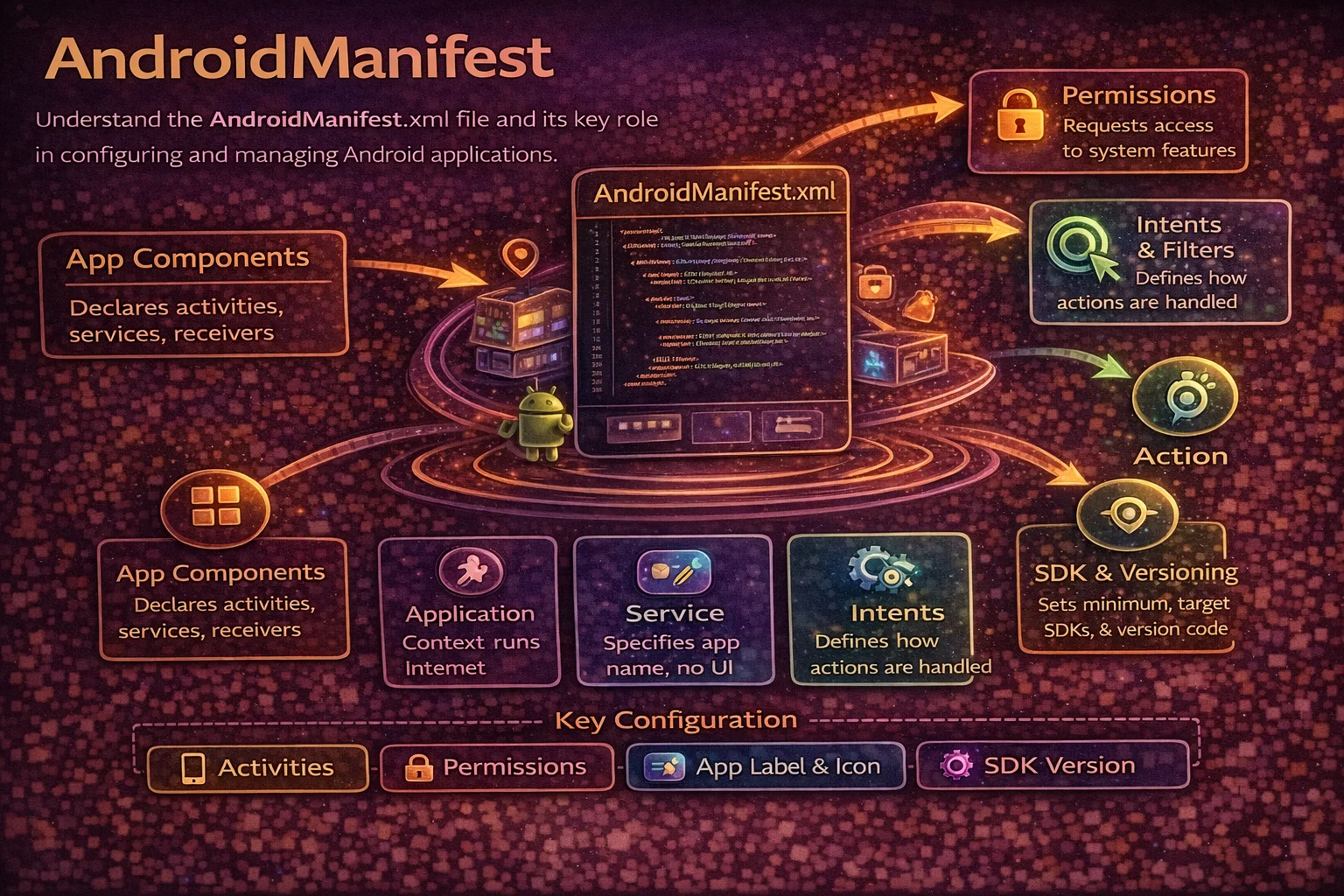
Every Android app must have an AndroidManifest.xml file. It’s the app’s declaration file that tells the system everything it needs to know about your app before running it:
<manifest xmlns:android="http://schemas.android.com/apk/res/android"
    package="com.example.myapp">

    <!-- Permissions the app needs -->
    <uses-permission android:name="android.permission.INTERNET" />
    <uses-permission android:name="android.permission.CAMERA" />

    <!-- Hardware/software features required -->
    <uses-feature android:name="android.hardware.camera" android:required="false" />

    <application
        android:name=".MyApplication"
        android:theme="@style/AppTheme"
        android:icon="@mipmap/ic_launcher"
        android:allowBackup="true">

        <!-- All four components must be declared here -->

        <!-- Activities -->
        <activity
            android:name=".MainActivity"
            android:exported="true">
            <intent-filter>
                <action android:name="android.intent.action.MAIN" />
                <category android:name="android.intent.category.LAUNCHER" />
            </intent-filter>
        </activity>

        <!-- Services -->
        <service android:name=".MusicPlayerService"
            android:foregroundServiceType="mediaPlayback" />

        <!-- Broadcast Receivers -->
        <receiver android:name=".BootReceiver"
            android:exported="false">
            <intent-filter>
                <action android:name="android.intent.action.BOOT_COMPLETED" />
            </intent-filter>
        </receiver>

        <!-- Content Providers -->
        <provider android:name=".MyContentProvider"
            android:authorities="com.example.myapp.provider"
            android:exported="false" />
    </application>
</manifest>

<!-- Key rules:
     - Every Activity, Service, Receiver, and Provider must be declared
     - The launcher Activity needs MAIN + LAUNCHER intent filter
     - Permissions are requested here but also at runtime (Android 6+)
     - android:exported must be explicitly set (Android 12+) -->
How Android Manages Your App’s Process
Android is designed for devices with limited memory. The system aggressively manages processes to keep the device responsive:
// Android assigns a PRIORITY to each process:
//
// 1. FOREGROUND — currently visible Activity or foreground Service
//    → Highest priority, almost never killed
//
// 2. VISIBLE — Activity partially visible (behind a dialog)
//    → High priority, rarely killed
//
// 3. SERVICE — running a background Service
//    → Medium priority, killed if memory is low
//
// 4. CACHED (BACKGROUND) — Activity that's no longer visible
//    → Low priority, killed frequently to reclaim memory
//
// 5. EMPTY — process with no active components
//    → Lowest priority, killed first

// What this means for you:
// - Your app CAN BE KILLED at any time when in the background
// - You MUST save state in onSaveInstanceState() or ViewModel
// - Don't rely on static variables surviving — they die with the process
// - Use ViewModel for configuration changes (rotation)
// - Use SavedStateHandle or onSaveInstanceState for process death
Process death vs configuration change
// Configuration change (screen rotation, locale change):
// - Activity is destroyed and recreated
// - ViewModel SURVIVES ✅
// - onSaveInstanceState data SURVIVES ✅
// - Static variables SURVIVE ✅ (same process)

// Process death (system kills your app for memory):
// - Entire process is killed — everything is gone
// - ViewModel is DESTROYED ❌
// - Static variables are DESTROYED ❌
// - onSaveInstanceState data SURVIVES ✅ (saved by system)
// - SavedStateHandle SURVIVES ✅

// This is why you need BOTH:
class ArticleViewModel(private val savedStateHandle: SavedStateHandle) : ViewModel() {
    // ViewModel survives rotation
    // SavedStateHandle survives process death

    private val articleId: String = savedStateHandle.get<String>("article_id") ?: ""

    // In-memory cache — survives rotation, lost on process death
    private val _articles = MutableStateFlow<List<Article>>(emptyList())

    // Saved state — survives both
    fun saveScrollPosition(position: Int) {
        savedStateHandle["scroll_position"] = position
    }
}
The Build Process — From Code to APK
// What happens when you click "Run" in Android Studio:
//
// 1. KOTLIN COMPILER
//    Your .kt files → .class bytecode (JVM bytecode)
//
// 2. D8/R8 COMPILER
//    .class files → .dex files (Dalvik bytecode)
//    R8 also does: minification, obfuscation, dead code removal
//
// 3. RESOURCE COMPILER (AAPT2)
//    res/ folder → compiled resources + R.java (resource IDs)
//    AndroidManifest.xml → compiled manifest
//
// 4. APK PACKAGER
//    .dex + compiled resources + native libs + assets → .apk file
//
// 5. APK SIGNING
//    .apk → signed .apk (debug or release key)
//
// 6. INSTALLATION
//    adb install → installs on device/emulator
//    ART compiles dex to native code (AOT or JIT)
//
// APK vs AAB:
// APK — single file, all resources for all devices
// AAB (Android App Bundle) — Google Play generates optimised APKs per device
//   → Smaller downloads (only includes resources the device actually needs)
//   → Required for new Play Store submissions
ART — Android Runtime
// ART (Android Runtime) runs your app's bytecode on the device
// It replaced Dalvik in Android 5.0 (Lollipop)

// DALVIK (old — Android 4.4 and below):
// - JIT (Just-In-Time) compilation — compiles code while running
// - Slower startup, less memory efficient
// - .dex bytecode interpreted at runtime

// ART (current — Android 5.0+):
// - AOT (Ahead-Of-Time) + JIT hybrid compilation
// - On install: critical code is compiled to native machine code (AOT)
// - At runtime: hot code paths are JIT-compiled and cached
// - Better performance, better battery life, better garbage collection
// - Profile-guided compilation — learns which code is "hot" over time

// Why this matters to you:
// - ART's garbage collector is more efficient → fewer frame drops
// - AOT compilation means faster app startup after initial runs
// - R8 optimisation at build time + ART optimisation at runtime = fast code
// - But: first run after install can be slower (AOT compilation happening)
App Sandbox — Security Model
// Every Android app runs in its own SANDBOX:
//
// 1. UNIQUE LINUX USER — each app gets its own Linux user ID
//    App A (uid=10045) cannot access App B's (uid=10046) files
//
// 2. SEPARATE PROCESS — each app runs in its own process
//    One app crashing doesn't affect others
//
// 3. PRIVATE STORAGE — each app has its own internal storage
//    /data/data/com.example.myapp/ — only your app can access this
//
// 4. PERMISSIONS — apps must request permission for:
//    Camera, Location, Contacts, Storage, Microphone, etc.
//    Runtime permissions required since Android 6.0 (API 23)

// What this means:
// - Your files are private by default — safe for tokens, preferences
// - To share data between apps, use ContentProvider or FileProvider
// - Permissions can be revoked at any time — always check before using
// - Scoped Storage (Android 10+) further restricts file access
Key Concepts Every Android Developer Must Know
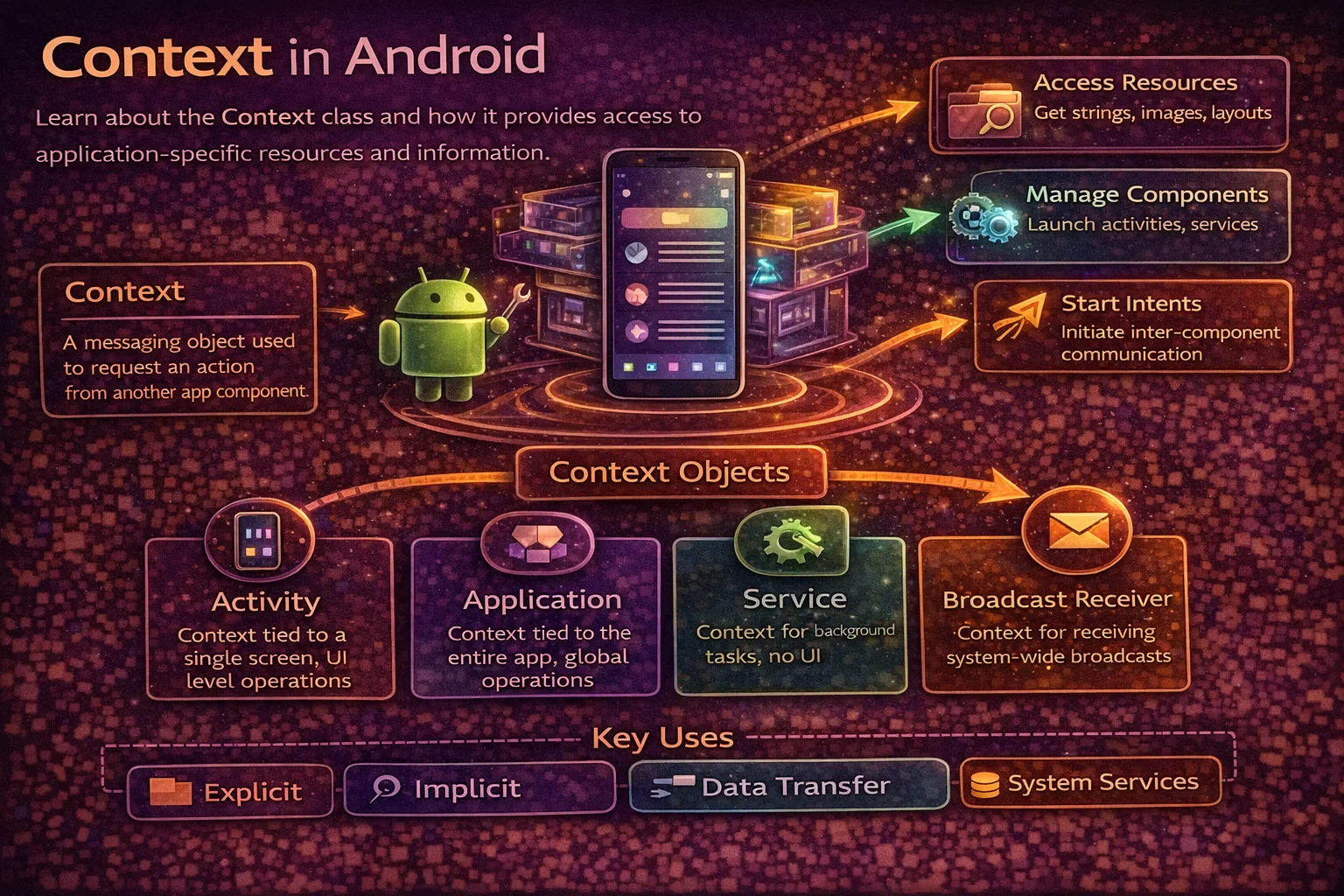
// CONTEXT — the bridge between your app and the Android system
// Used for: accessing resources, starting activities, creating views, getting system services
// Two types: Application Context (app-wide) and Activity Context (screen-specific)

// INTENT — a messaging object for communication
// Used for: starting Activities, starting Services, sending Broadcasts
// Explicit: targets a specific component (Intent(this, DetailActivity::class.java))
// Implicit: describes an action, system finds the right app (Intent(ACTION_VIEW, uri))

// BACK STACK — a stack of Activities managed by the system
// Each task has its own back stack
// Press back → top Activity is popped and destroyed

// CONFIGURATION CHANGE — screen rotation, locale change, dark mode toggle
// Activity is destroyed and recreated with new configuration
// ViewModel survives, but Views and local variables don't

// PROCESS DEATH — system kills your app to reclaim memory
// Everything is lost except onSaveInstanceState/SavedStateHandle data
// System restores your app when user returns — but your in-memory data is gone
Common Mistakes to Avoid
Mistake 1: Assuming your app is always running
// ❌ Storing important data only in memory
object AppState {
    var authToken: String? = null   // gone after process death!
}

// ✅ Persist important data
// Use DataStore or EncryptedSharedPreferences for tokens
// Use SavedStateHandle for UI state
// Use Room for structured data
Mistake 2: Doing heavy work on the main thread
// ❌ Network call on main thread — ANR crash
override fun onCreate(savedInstanceState: Bundle?) {
    val data = URL("https://api.example.com").readText()   // blocks main thread!
}

// ✅ Use coroutines
override fun onCreate(savedInstanceState: Bundle?) {
    lifecycleScope.launch {
        val data = withContext(Dispatchers.IO) {
            URL("https://api.example.com").readText()
        }
        textView.text = data
    }
}
Mistake 3: Leaking Activity Context
// ❌ Storing Activity context in a singleton — memory leak
object Repository {
    lateinit var context: Context   // holds reference to Activity forever!
}

// ✅ Use Application context for long-lived objects
class Repository(private val context: Context) {
    // Pass applicationContext, not Activity context
}

// In Hilt:
@Provides
@Singleton
fun provideRepository(@ApplicationContext context: Context): Repository {
    return Repository(context)   // ✅ Application context — no leak
}
Mistake 4: Not handling configuration changes
// ❌ Loading data in onCreate without checking if it already exists
class MyActivity : AppCompatActivity() {
    override fun onCreate(savedInstanceState: Bundle?) {
        super.onCreate(savedInstanceState)
        loadDataFromNetwork()   // runs AGAIN on every rotation!
    }
}

// ✅ Use ViewModel — survives rotation, loads data once
class MyViewModel : ViewModel() {
    val data: StateFlow<Data> = flow {
        emit(repository.getData())
    }.stateIn(viewModelScope, SharingStarted.WhileSubscribed(5000), null)
}

// Activity just observes — doesn't trigger load on rotation
viewModel.data.collect { data -> updateUI(data) }
Summary
- Android is built in layers: Linux Kernel → HAL → ART + Libraries → Framework → Your App
- When you tap an app icon: Launcher → System → Zygote forks process → Application.onCreate → Activity.onCreate
- Four app components: Activity (screens), Service (background), BroadcastReceiver (events), ContentProvider (shared data)
- All components must be declared in AndroidManifest.xml
- Android aggressively kills background apps to reclaim memory — never assume your app survives
- Configuration change (rotation) destroys and recreates Activity — ViewModel survives
- Process death kills everything — only SavedStateHandle and onSaveInstanceState survive
- Build process: Kotlin → .class → .dex (R8) → APK/AAB → signed → installed
- ART runs your code using AOT + JIT hybrid compilation for optimal performance
- Each app runs in a sandbox with its own process, user ID, and private storage
- Use Application context for singletons, Activity context for UI operations
- Always handle both configuration changes and process death — test with “Don’t keep activities” in Developer Options
This mental model is the foundation everything else builds on. When you understand how Android manages processes, why Activities are recreated, and how the build system works — concepts like ViewModel, SavedStateHandle, and lifecycle-aware components stop feeling like magic and start making perfect sense.
Happy coding!
Comments (0)